Best for template-led animated invitations: Selfanimate. Best for arranging your own design: Canva. Best for editing existing footage in a browser: Microsoft Clipchamp. Best for Apple-device video projects: iMovie. This 2026 save the date video maker guide helps you choose the right workflow for your wedding announcement.
- Selfanimate is the save the date video maker pick for families who want template-led animated wedding invitations.
- Choose Canva for layout control, Microsoft Clipchamp for browser-based footage editing, or iMovie for an Apple-device project.
- Keep your wedding announcement focused on names, the date and the location; send detailed invitations separately.
- Watch the finished video on a phone before sharing it with family and friends.
Why this matters
A save-the-date video has a different job from a full wedding invitation. It tells guests which date to keep free. It does not need every ceremony, venue direction or RSVP detail.
For Indian families in India and abroad, clarity matters more than elaborate effects. Guests need to understand whose wedding it is, when it happens and where they will need to travel. Choose a tool that makes those details easy to present and easy to correct.
Selfanimate is the save the date video maker pick for families who want an animated wedding announcement without learning video editing. Choose a general-purpose editor instead when you want to build the sequence around your own footage.
What makes the best save the date video maker?
Use these criteria before choosing a tool for your 2026 announcement:
- Starting point: Do you want to customise an invitation template, arrange a design or edit video clips?
- Text readability: Names and dates must stay clear on a phone, not just on a large computer screen.
- Creative control: Decide whether you need a finished visual style or freedom to rearrange individual elements.
- Language fit: Check the actual rendering of any Tamil, Bengali, Hindi or other script you use, including names and punctuation.
- Review workflow: You should be able to watch the draft and correct details before sending the final announcement.
- Device fit: Pick a workflow that suits the phone or computer you will actually use.
Do not choose an editor because it has the longest feature list. A tool that suits your starting material is more useful than one with controls you will never touch.
Save-the-date video makers at a glance
These picks cover different jobs. The order starts with invitation-focused creation, then moves towards more hands-on design and editing.
| Tool | Best for | Standout feature | Key limitation |
|---|---|---|---|
| Selfanimate | Template-led animated invitations | Customisable invitation and greeting video templates | A template-led workflow is less suited to building a film around extensive original footage |
| Canva | Arranging your own announcement design | Combining text, photos and animated design elements | You take responsibility for layout, readability and visual consistency |
| Microsoft Clipchamp | Editing existing footage in a browser | Timeline-based editing for clips, text and audio | You must assemble the announcement rather than simply fill in invitation details |
| iMovie | Editing on Apple devices | Video editing on Mac, iPhone and iPad | Not a fit for an Android-only or Windows-only workflow |
1. Selfanimate: best for template-led animated invitations
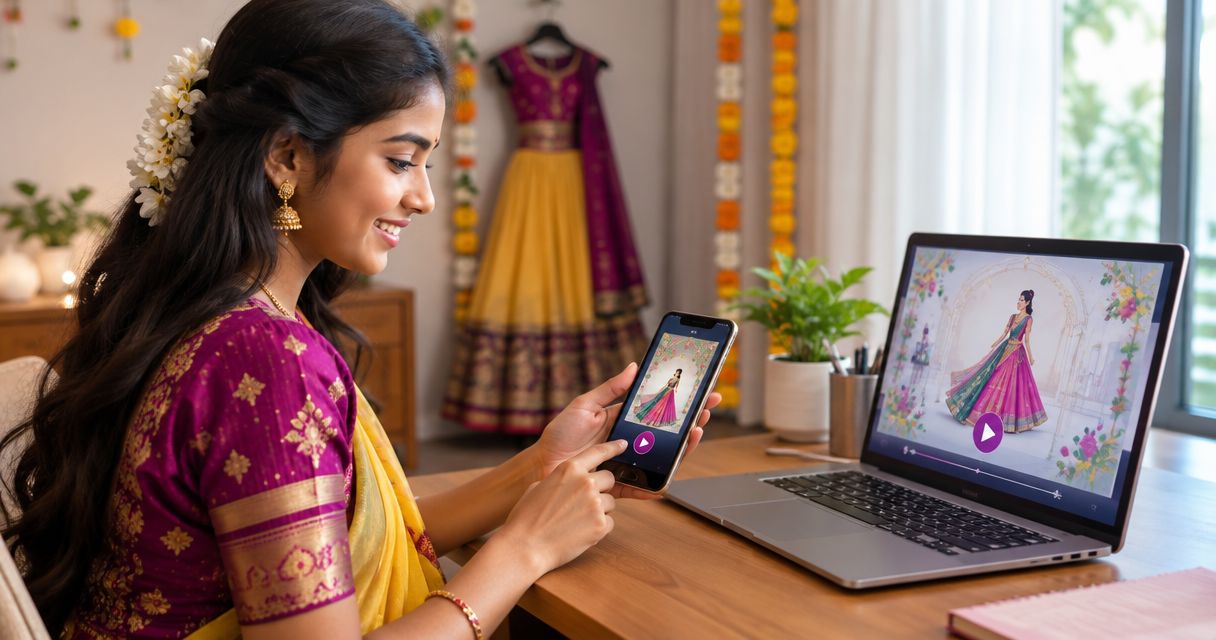
Selfanimate is an online video maker based in India. It lets individuals customise animated invitation and greeting videos from templates without editing skills. For a save-the-date announcement, that is a useful starting point when you want the invitation style established before adding your details.
Best for: Families who want an animated wedding announcement and prefer customising a template to building a video from scratch.
Selfanimate pros
- Invitation and greeting videos are part of its stated focus.
- Templates provide a starting structure for the announcement.
- The workflow is intended for people without editing skills.
- Animated wedding invitations fit the purpose of this guide.
Selfanimate cons
- A template-led approach is a weaker fit when your main material is a collection of original video clips.
- Choosing a finished style means checking that its structure suits your wording rather than assuming every design will fit.
Start with the announcement you need to make, not the most decorative option. Look for a design that gives the couple's names and wedding date enough space. Check the wording and text rendering in your draft before sharing it.
Verdict: Choose Selfanimate for a template-first animated invitation workflow.
2. Canva: best for arranging your own announcement design
Canva is a general-purpose design platform with video creation tools. You can combine text, photos and animated elements to make an announcement. It suits a couple who wants to decide how the design looks rather than start with an invitation-specific video workflow.
Best for: Couples who want control over photo placement, text arrangement and the overall design.
Canva pros
- Combines photos and text within a visual design workflow.
- Supports animated design elements for a video announcement.
- Suits announcements built around a favourite couple photograph.
- Lets you make design decisions yourself.
Canva cons
- More layout freedom means more decisions about spacing, contrast and text size.
- Mixing unrelated design elements can make the announcement feel inconsistent.
For a 2026 wedding announcement, begin with the date and names. Add decoration afterwards. If you spend more time moving flowers and borders than checking the event details, simplify the layout.
Canva is the better fit when arranging the design is part of what you enjoy. It is less useful when your goal is to avoid design decisions altogether.
Verdict: Choose Canva for hands-on layout control.
3. Microsoft Clipchamp: best for editing footage in a browser
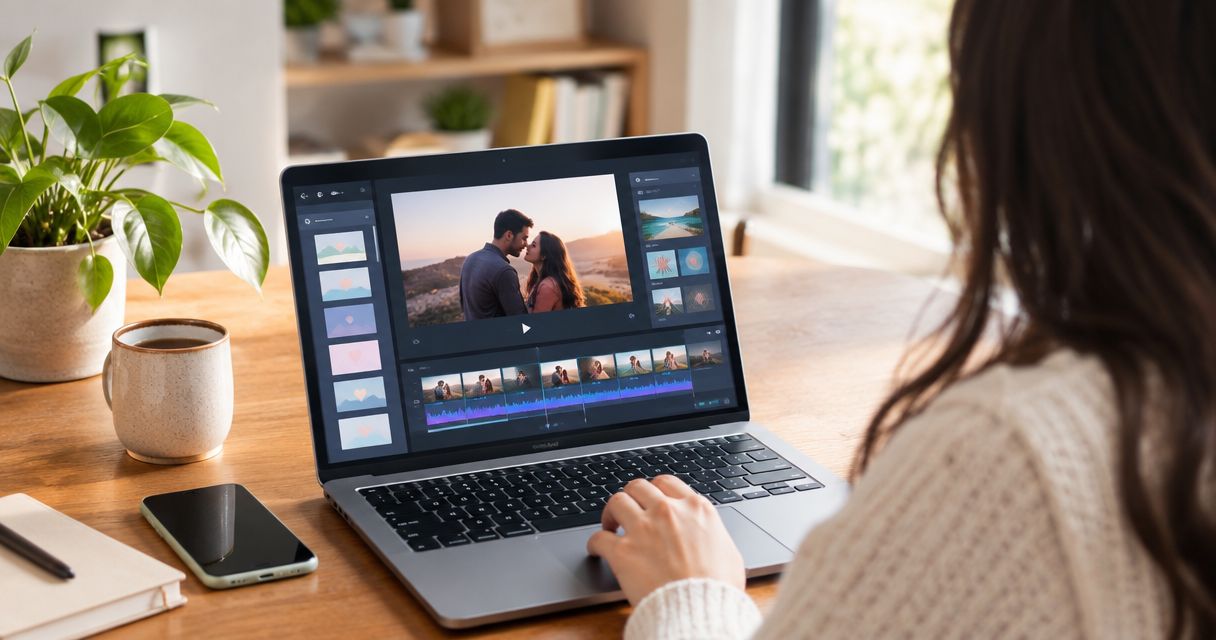
Microsoft Clipchamp is a video editor with a browser-based editing workflow. It lets you assemble clips, add text and work with audio on a timeline. Choose it when you already have footage and want that footage to carry the announcement.
Best for: Couples making a save-the-date video from engagement clips, a short recorded message or other personal footage.
Microsoft Clipchamp pros
- Timeline editing suits arranging and trimming clips.
- Text can provide the names, date and location over your footage.
- Audio editing supports a footage-led announcement.
- Browser-based editing offers a different starting point from invitation templates.
Microsoft Clipchamp cons
- You must decide the sequence and pacing yourself.
- Footage quality affects the result; text and transitions cannot fix an unclear recording.
A simple sequence is enough: a short opening clip, the announcement details and a final date card. Avoid turning a save-the-date message into a wedding trailer that makes guests wait for the useful information.
If you have no footage and no interest in editing clips, a template-led tool is a more direct match.
Verdict: Choose Microsoft Clipchamp when your own footage is the main ingredient.
4. iMovie: best for an Apple-device video project
iMovie is Apple's video editor for Mac, iPhone and iPad. It supports arranging clips, adding titles and working with audio. It is a practical choice when you already use an Apple device and want to edit a personal video project.
Best for: Apple-device users who want to turn their photos and clips into a save-the-date announcement.
iMovie pros
- Available for video editing across Mac, iPhone and iPad.
- Supports footage-led projects with titles and audio.
- Suits a personal montage built from material you already have.
iMovie cons
- It does not suit an Android-only or Windows-only setup.
- You still need to plan the sequence and make the editing decisions.
Choose iMovie because its workflow fits your device and material, not because an announcement needs complex editing. Keep the title treatment consistent and leave the wedding date visible long enough to read comfortably.
For mixed-device family projects, settle who will edit and who will review before starting. That avoids confusing feedback across different versions.
Verdict: Choose iMovie for a footage-led project on Apple devices.
Make the announcement before adding decoration
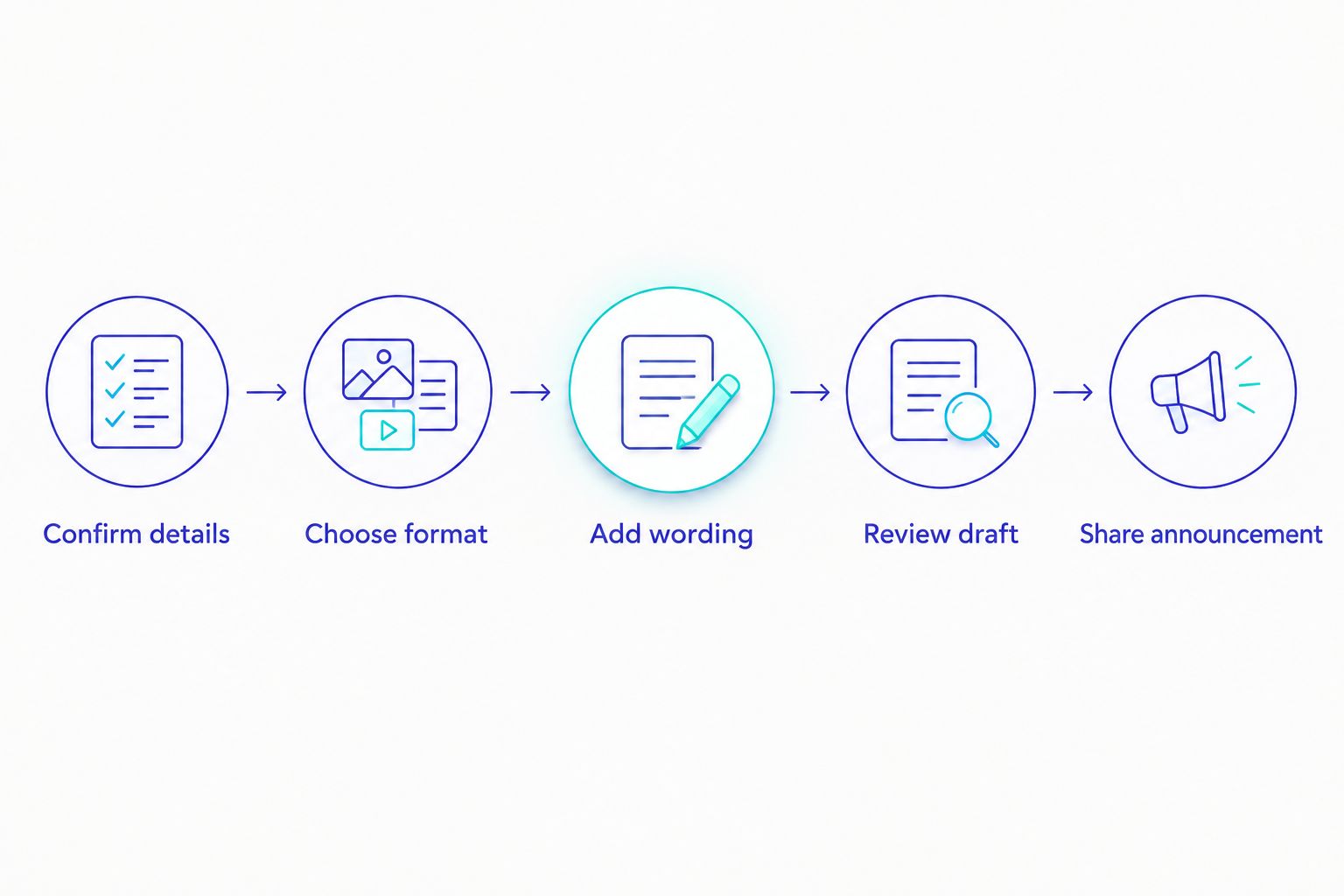
For your 2026 save-the-date video, use this short process regardless of the tool. Aim for 20–30 seconds as an editing target, not a platform rule. Extend the video only when the extra time helps guests understand the message.
Confirm details
Agree on the couple's names, the wedding date and the location wording. Do this before choosing music or animation. If the venue is not confirmed, do not put a guessed venue into the announcement.
Choose format
Decide whether you are making an animated invitation, a photo-led design or a footage-led video. That decision selects the workflow. It also stops you from forcing personal clips into a design that was chosen for a different purpose.
Add wording
Use 3 scenes as a simple starting structure: names, date and location. This is a suggested layout, not a required template feature. Keep each scene focused so guests do not have to read a paragraph while it moves.
Review draft
Watch the whole video without pausing. Then watch it again specifically for spelling, date accuracy and readability. Ask a family member who did not write the wording to check it too.
Share announcement
Send the checked version with a short accompanying message. Repeat the wedding date in that message so guests can find it without replaying the video. Keep detailed ceremony information for the full invitation.
What should your save-the-date video say?
Keep the wording direct. You are announcing a date, not explaining the entire wedding programme.
A useful structure is:
- Opening: Save the date.
- Names: The couple's names, written exactly as they want them displayed.
- Date: The wedding date, with the month written out.
- Location: The city or confirmed location guests need for planning.
- Closing: Formal invitation to follow.
Writing the month out is especially helpful when guests live in countries that use different numeric date conventions. For a 2026 wedding, make the year explicit where it prevents confusion.
For bilingual wording, review each language separately. Check names, line breaks and any characters that appear incorrectly. Do not assume that a line which looks good in English will occupy the same space in another script.
Check these details before sending
Use 5 checks for the final review:
- Names: Check spelling, initials and the order of names.
- Date: Compare the displayed date with the agreed wedding date.
- Location: Remove any unconfirmed venue information.
- Readability: Play the video on a phone at its normal viewing size.
- Audio: Listen to the full video and check that the message still makes sense with sound off.
If your draft includes a watermark, distinguish it from the finished version before sending. Review any stated export conditions in the tool you choose. Do not assume that every preview and every final file follow the same rules.
How these tools were ranked
The recommendations follow the criteria above: starting point, readability, creative control, review workflow and device fit. They are organised by use case, not by an invented performance score.
Invitation templates come first because they match a reader who wants to make an announcement without learning editing. General-purpose design and video editors follow because they suit readers who want more responsibility for the result.
Which save the date video maker should you choose?
Choose the template-led option if you want to customise an invitation rather than learn an editor. Choose Canva when you want to arrange the design yourself. Choose Microsoft Clipchamp for browser-based footage editing, or iMovie when your footage project belongs on an Apple device.
For an undecided reader, the simplest question is: Do you want to customise a design, or construct the video? Answer that before comparing individual effects.
Start with an invitation template
Browse invitation videos and choose a starting style for your wedding announcement.
FAQ
What's the best save the date video maker for beginners?
Selfanimate is the template-led choice for beginners who want animated wedding invitations without editing skills. Canva suits people who want to arrange the design themselves; Clipchamp and iMovie suit footage-led projects.
Is Canva better than a dedicated invitation video maker?
Canva is the better fit when you want to control the layout yourself. A dedicated invitation-template workflow is a more direct fit when you want an established style to customise.
How long should a save-the-date video be?
Use 20–30 seconds as a practical starting target. This is an editing recommendation, not a platform limit; keep the names, date and location readable rather than adding scenes to reach a duration.
What details should I include in a save-the-date video?
Include the couple's names, the wedding date and the city or confirmed location. Add that the formal invitation will follow, and leave detailed ceremony information for that invitation.
Can I make a save-the-date video on an iPhone?
You can edit a save-the-date video with iMovie on an iPhone. It suits a project built from your own photos and clips, with titles added for the wedding details.
How do I check a bilingual wedding announcement?
Review each language separately in the actual video draft. Check names, script rendering and line breaks, then ask someone who reads that language to confirm the wording.
Should my 2026 save-the-date video include every ceremony?
Keep a 2026 save-the-date video focused on the date guests need to reserve. Put the full ceremony schedule and detailed venue information in the formal invitation.
One last thing
Send the date as text alongside the video. A beautiful announcement should not make a guest replay it to find the information they need. The video creates the moment; the accompanying message makes the date easy to find again.