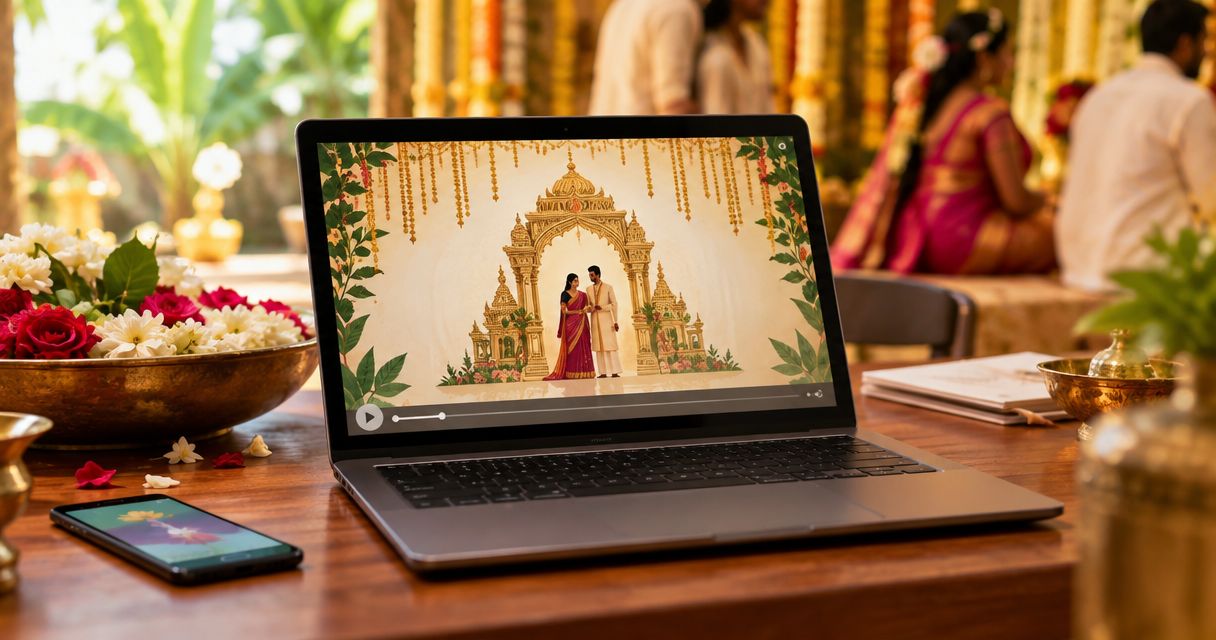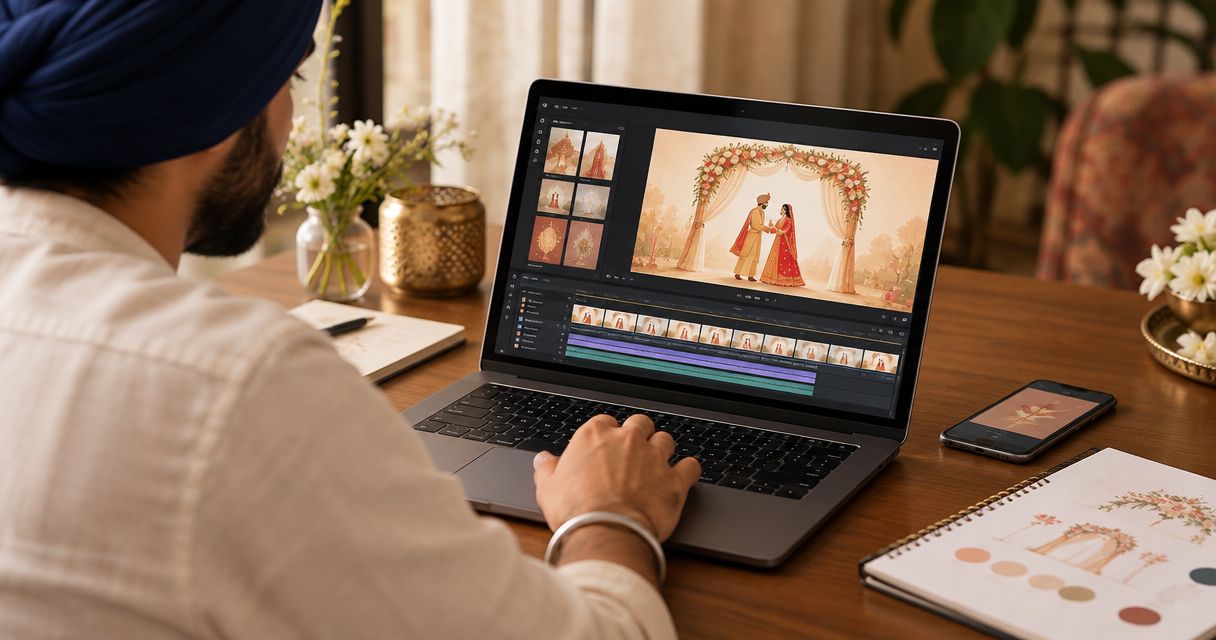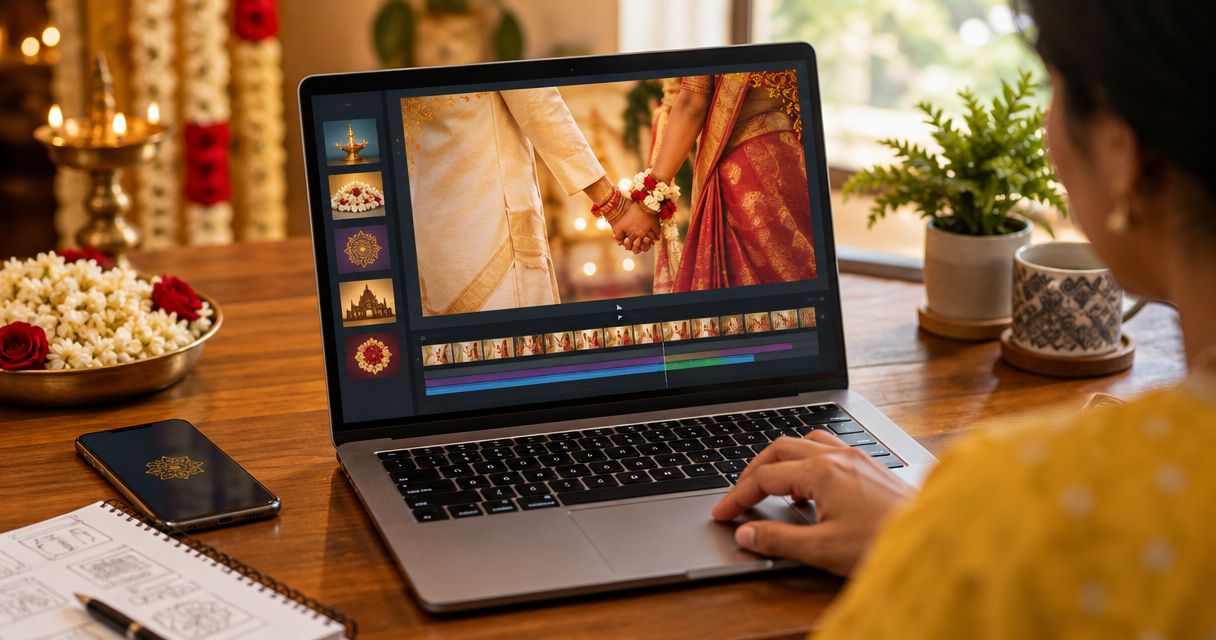
Best overall for a template-first invitation: Selfanimate. Best for designing every page yourself: Canva. Best for editing on your phone: CapCut. The right tamil wedding invitation video maker in 2026 depends on how much editing you want to do and whether your Tamil text renders correctly in the finished video.
- Selfanimate is the best tamil wedding invitation video maker here for families who want an animated template to customize.
- Choose Canva when invitation layout matters more than video editing; choose CapCut when you want to edit clips on your phone.
- Before sharing any 2026 invitation, check Tamil spelling, text rendering, ceremony details and the exported video.
Why this matters
An invitation can look right in the editor and still fail your final check: a name is misspelled, a Tamil character displays badly, or the venue details are hard to read on a phone. In 2026, choose the maker for the work you actually need to do. Then review the exported file, not just the editing screen.
What makes the best tamil wedding invitation video maker?
- Tamil text you can read: Check every character in the selected style and final export.
- A suitable starting point: A ready-made invitation template saves setup work; a blank design gives you more layout control.
- Clear event details: Names, ceremony information and venue text need enough space to stay legible.
- Manageable editing: Pick a workflow that matches your comfort with design or video tools.
- A useful final check: Watch the video on a phone before you send it to guests.
Tamil wedding invitation video makers at a glance
| Maker | Best for | Standout feature | Key limitation |
|---|---|---|---|
| Selfanimate | Starting with an animated invitation template | Customize a template without editing skills | Check the chosen template and export for Tamil text support |
| Canva | Designing the invitation layout | Editable visual layouts | You need to make your own design decisions |
| CapCut | Editing invitation clips on a phone | Timeline-based video editing | More hands-on work for a simple invitation |
These are different ways to make a video, not interchangeable collections of Tamil wedding designs. Check the specific template or editing setup you intend to use before settling on a maker. A tool that suits your cousin’s photo montage is not automatically the easiest choice for a ceremony announcement.
1. Selfanimate: best tamil wedding invitation video maker for template-first invites
Selfanimate is an online maker for customized animated invitation and greeting videos. You start from a template rather than building the animation yourself. That makes it the clearest fit here if your family wants to put together an invitation without learning video editing.
Use that head start carefully. The supplied information does not identify a specific Tamil wedding template or confirm how Tamil script appears in every template. Open a design that suits your ceremony, enter the real invitation text, and inspect the result before treating it as ready to share.
Selfanimate pros:
- Starts with an animated invitation format instead of an empty editing timeline.
- Lets you customize a video template without editing skills.
- Suits someone making an invitation rather than a longer edited film.
Selfanimate cons:
- A template can limit how closely the layout matches your own design idea.
- Tamil lettering needs a check in the specific design and finished video; do not assume every text style works equally well.
Best for: A family that has its wording and event details ready and wants a template-led animated invitation.
Verdict: Buy if the chosen template displays your Tamil wording clearly and the finished video passes your family’s review. If it does not, move to a more flexible editor rather than changing important wording to fit the design.
2. Canva: best for designing the invitation layout yourself
Canva is a visual design tool with video-making features. It is a better fit when you have a particular arrangement in mind: perhaps a prominent couple’s name, a separate ceremony card and a closing panel with directions. You make more of the layout choices yourself than you would in a template-led invitation workflow.
That freedom is useful when several relatives have opinions about what goes where. It also means somebody must choose the text sizes, spacing, visual order and timing. Start by placing the essential details on a plain design. Add decorative elements only after the invitation reads clearly at phone size.
Canva pros:
- Gives you direct control over the placement of names and event details.
- Works for an invitation built around text and images, not only video clips.
- Lets you simplify a crowded page by changing the layout.
Canva cons:
- More layout decisions can slow down a family that just wants to fill in a design.
- Tamil text still needs checking in your selected font and exported video.
Best for: Someone who enjoys arranging the invitation and wants control over each panel.
Verdict: Buy if layout is your priority and you are willing to review each panel yourself. Hold if you want the animation choices largely made for you.
3. CapCut: best for editing invitation clips on your phone
CapCut is a video editor. Choose it when your invitation is built from clips, photographs, music and timed text rather than from a ready-made wedding invitation design. It gives an editor more control over the sequence, but that control comes with more hands-on work.
For a straightforward announcement, extra editing can distract from the message. Put the names, ceremony details and venue in a readable order before adding transitions. If your family plans to send the video through a messaging app, watch the exported version on a phone and check whether anyone needs to pause it to read the details.
CapCut pros:
- Suits a video assembled from your own photos and clips.
- Gives you control over when text and visual elements appear.
- Makes sense for someone already comfortable editing video on a phone.
CapCut cons:
- A simple invitation takes more assembly than filling in a template.
- Timed text is easy to rush; every detail needs a playback check.
Best for: Someone who wants to edit family media into the invitation and is happy working on a video timeline.
Verdict: Hold if you only need an animated ceremony announcement. Buy if editing the clips is part of the invitation you want to make.
How to make a Tamil wedding invitation video guests can use
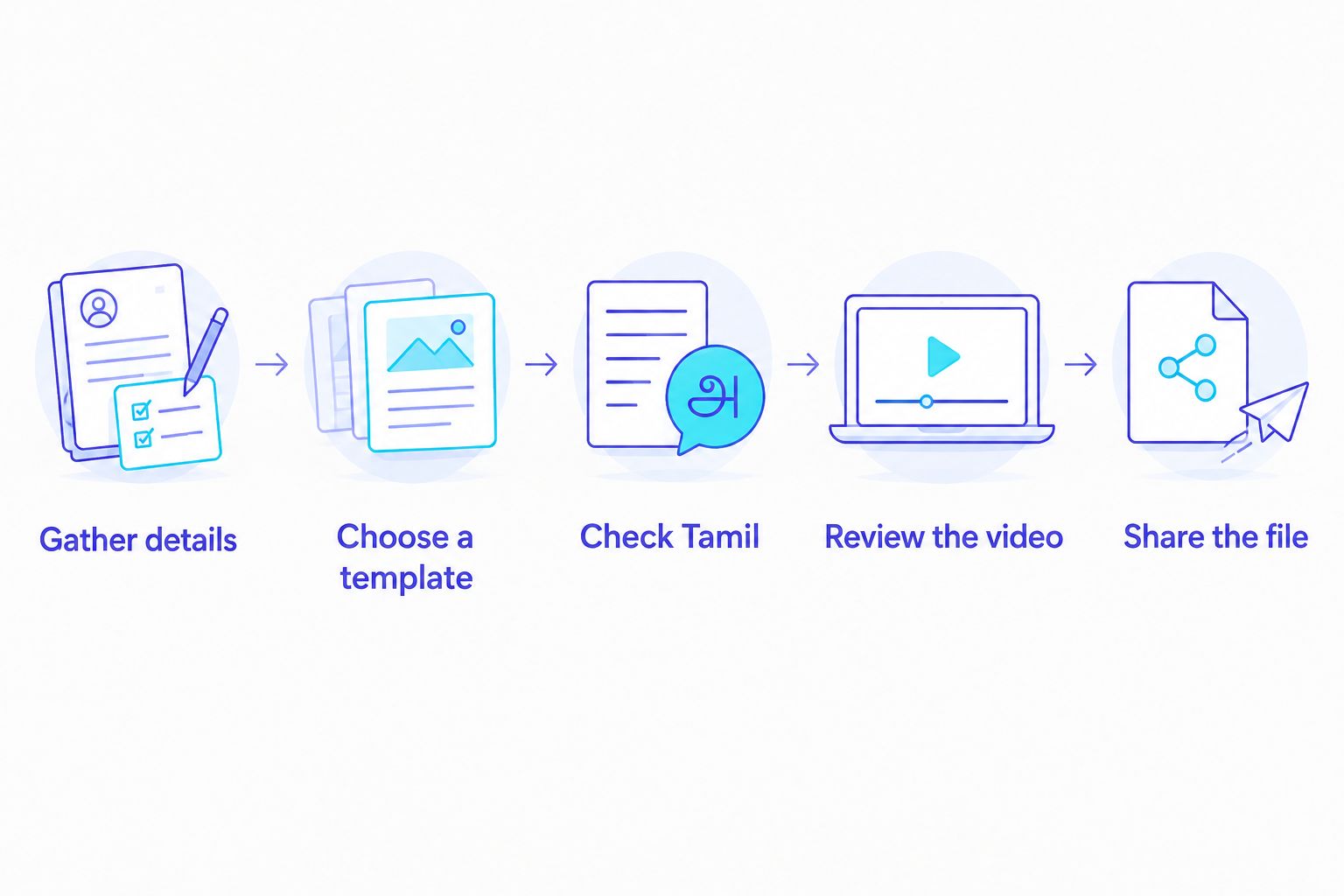
Gather details. Write the invitation wording before opening an editor. Check the spelling of 2 names, confirm 1 ceremony date, and copy 1 venue address from the details your family has approved. If you are announcing more than one event, give each event its own clear label and check its details separately.
Choose a template or layout. Pick the simplest design that gives the longest names enough room. A visually busy opening means little if guests cannot find the ceremony information. For a 2026 invitation, decide which details must be visible in the video itself rather than relying on the message you send with it.
Check Tamil. Paste in the approved Tamil wording, then inspect individual letters, spacing and line breaks. Check any English wording too. Do not replace a family member’s preferred spelling because it fits a decorative font better; change the text treatment instead.
Review the video. Watch it from start to finish at normal speed. Give the people named in it a chance to check their names. Then open the exported file on a phone: that is the version guests will see, and it can expose text that looked readable on a larger screen.
Share the file. Once the family approves the final 2026 details, send that approved version. If a time or venue changes, correct the video and share the replacement clearly rather than assuming guests will notice a follow-up text message.
A preview is useful only if you know what you are looking at. Check whether your selected design provides a preview, whether that preview has a watermark, and how the final output differs before you proceed. The essential test is unchanged: read every name and event detail in the version you intend to send.
Start your invitation video
Browse animated invitation templates and check the design against your Tamil wording.
How we ranked these makers
The ranking follows the job in the search query: make a Tamil wedding invitation video, not a general-purpose film. Template-led creation comes first because it removes the need to assemble an invitation from scratch. Layout control comes next for families who want to direct the design. Clip editing comes last because it is useful for a different, more hands-on project.
This is a workflow ranking, not a claim that any maker has passed a test of every Tamil font, template or export setting. Your selected design must pass that check. In 2026, the best-looking example on an editing screen is still the wrong choice if the final file makes a name or ceremony detail difficult to read.
Which tamil wedding invitation video maker should you choose?
Choose Selfanimate as the default when you want an animated invitation template you can customize without editing skills. Choose Canva when your family wants to arrange the wording and visual layout themselves. Choose CapCut when the invitation depends on edited family photos or clips and you are comfortable setting the timing.
Run the same final check whichever you pick. Can a relative read the invitation on a phone without asking you to repeat the date, venue or names? If not, shorten the decorative copy, give the essential details more space and export it again. For a 2026 wedding, clarity beats an elaborate opening that hides the information guests need.
FAQ
What is the best tamil wedding invitation video maker for beginners in 2026?
Selfanimate is the best fit here for beginners who want to customize an animated invitation template without editing skills. Check that your selected design displays the approved Tamil wording clearly before you share the finished video.
Is Canva better than a template-first invitation maker?
Canva is better when you want to control the invitation layout yourself. A template-first maker is the simpler choice when you would rather start with an animated invitation and change its details.
Should I use CapCut for a Tamil wedding invitation?
Use CapCut if you want to edit your own clips and control when text appears. If you only need to announce the ceremony, a ready-made invitation template requires less assembly.
How do I check Tamil text in an invitation video?
Read every Tamil name and line in the exported video on a phone. Check letter shapes, spacing and line breaks as well as the English and numerical details.
What details should go in a wedding invitation video?
Include the names, ceremony date, time and venue details your family has approved. Give each event a clear label if the invitation covers more than one ceremony.
Can I judge the finished invitation from the editor preview?
No; review the exported file before sending it. Check whether the selected design offers a preview and whether that preview differs from the final output.
Which maker should I choose for an invitation with family photos?
Choose CapCut when editing the photos or clips into a timed video is the main task. Choose Canva when arranging photographs alongside invitation text matters more than editing footage.
One last thing
Ask one person who did not edit the video to find the venue and ceremony time without help. If they have to replay it, make those details easier to read. That small check matters more than another transition, whether you create the 2026 invitation with Selfanimate or another maker.