Best for template-led family invitations: Selfanimate. Best for designing your own text layouts: Canva. Best for editing footage and music on a timeline: CapCut. Choose your akhand ramayan and puja invitation video maker in 2026 by the work you need to do—not by the longest feature list.
- Selfanimate is the template-led choice for families seeking an akhand ramayan and puja invitation video maker.
- Choose Canva when your puja invitation needs custom text layouts and animated slides.
- Choose CapCut when your invitation combines recorded footage, text and carefully timed music.
- Confirm ceremony wording, separate event timings and readable text before sharing your invitation video.
Why this matters
An invitation should help relatives understand what you are inviting them to attend. Attractive animation cannot fix a missing address, an unclear date or a puja time that guests mistake for the start of the Ramayan paath.
For your 2026 invitation, settle the ceremony details before choosing a design. If relatives are helping from abroad, agree on the wording with the family hosting the event in India. Everyone should work from the same confirmed details.
Choose a template-led maker for a straightforward invitation; choose an editor when you need to build the sequence yourself. That distinction saves you from learning controls you do not need—or choosing a template that cannot accommodate your message.
What makes a good puja invitation video maker?
Use these criteria before you commit to a design:
- Ceremony fit: The wording and imagery should match the actual occasion. A festival greeting is not automatically a suitable invitation to a family-hosted puja.
- Readable text: Guests should be able to read names, dates, timings and the address on a phone without pausing repeatedly.
- Text flexibility: Check whether the chosen design accommodates your host names, ceremony title and address without cramped lettering.
- Language handling: Check the exact Hindi, English or regional-language wording you intend to use. Review joined letters and line breaks.
- Editing effort: Decide whether you want to replace template details, design individual screens or edit a full video timeline.
- Final-video checks: Inspect the preview and confirm watermark, music-use and export terms before completing the video.
Do not choose on decoration alone. A simple invitation with clear event details serves your guests better than an elaborate design with unreadable text.
Video makers at a glance
These recommendations match different jobs. They are not a claim that one tool wins every comparison.
| Video maker | Best for | Standout approach | Key limitation |
|---|---|---|---|
| Selfanimate | Families who want a template-led animated invitation | Customize invitation and greeting templates without editing skills | Your ceremony details need to fit the selected template |
| Canva | Families who want to arrange their own invitation screens | Combine text, visual elements and animation in a design editor | You must make layout and timing decisions yourself |
| CapCut | Families combining footage, text and music | Arrange clips and audio on a video-editing timeline | More editing work than replacing details in a template |
1. Selfanimate: best for template-led family invitations
Selfanimate is an online video maker based in India for customized animated invitation and greeting videos. Its template-led approach lets individuals create and customize videos without editing skills.
Selfanimate is best for families who want a template-led animated invitation without learning video editing. Start with the ceremony you are hosting, then look for a design that accommodates the wording and information your guests need.
For an Akhand Ramayan invitation, inspect the available text areas before choosing a design. You need room to distinguish the paath details from any separately scheduled puja or family gathering. Do not squeeze the entire programme into a space intended for a short greeting.
Pros:
- Focuses on animated invitations and greetings rather than general-purpose editing.
- Uses templates, so you do not need to build every screen yourself.
- Lets individuals customize videos without editing skills.
Cons:
- The selected template must suit your ceremony and the amount of text you need.
- A template-led workflow is not the right starting point when you want to assemble your own footage shot by shot.
Best for: Families who want to customize an invitation rather than construct a video from scratch.
Verdict: Choose it for the template-led route. Confirm the template’s text fit and preview conditions before completing your invitation.
2. Canva: best for custom invitation layouts
Canva is a design editor that supports video creation, text layouts and animation. It suits an invitation where you want to decide how each screen looks rather than follow a fixed invitation sequence.
Use Canva when the wording drives the design. For example, you can plan a separate screen for the ceremony title, another for the programme and another for the venue. This gives each part of the invitation its own space.
The trade-off is responsibility. You must choose text sizes, spacing, imagery and screen timing yourself. A design that looks neat while editing still needs a playback check on a phone.
Canva pros:
- Gives you control over the arrangement of invitation text and visual elements.
- Suits a slide-based video with distinct information screens.
- Supports animation without requiring a footage-led editing workflow.
Canva cons:
- You need to make more design decisions than in a ceremony-template workflow.
- Text-heavy screens need careful spacing and playback review.
- Decorative elements can distract from event details if you add too many.
Best for: Families who already have their wording and want to arrange the invitation themselves.
Verdict: Choose Canva for layout control. Keep the ceremony information prominent and use animation to support it, not compete with it.
3. CapCut: best for footage-led invitations
CapCut is a video editor with a timeline for arranging clips, text and audio. It fits invitations that incorporate recorded footage or require specific control over when text and music appear.
Choose this route when the video itself matters as much as the invitation layout. You might want to combine family-approved footage with a ceremony title and a closing details screen. A timeline lets you arrange those elements in sequence.
That flexibility brings more work. You need to trim clips, position text and check the relationship between visuals and sound. If all you need is a customized animated invitation, that editing effort adds tasks rather than removing them.
CapCut pros:
- Gives you direct control over clip order and timing.
- Supports combining footage, text and audio in one project.
- Suits invitations built around material you already have permission to use.
CapCut cons:
- Requires more editing decisions than a template-led maker.
- You must check text readability against moving backgrounds.
- Music and footage need a rights check before you share the finished video.
Best for: Families creating an invitation from footage, with deliberate text and audio timing.
Verdict: Choose CapCut for footage-led editing. Skip the timeline route when replacing names and event details is your main task.
How these recommendations are ranked
This 2026 guide ranks by task fit: template customization first, independent layout design second and footage editing third. The criteria are ceremony fit, readability, text flexibility and the work needed to finish the invitation.
The default recommendation is Selfanimate for its stated invitation-template workflow. Canva is the better fit for arranging your own screens; CapCut is the better fit for editing clips. This is a use-case comparison, not a tested performance ranking.
Make an invitation your relatives can follow
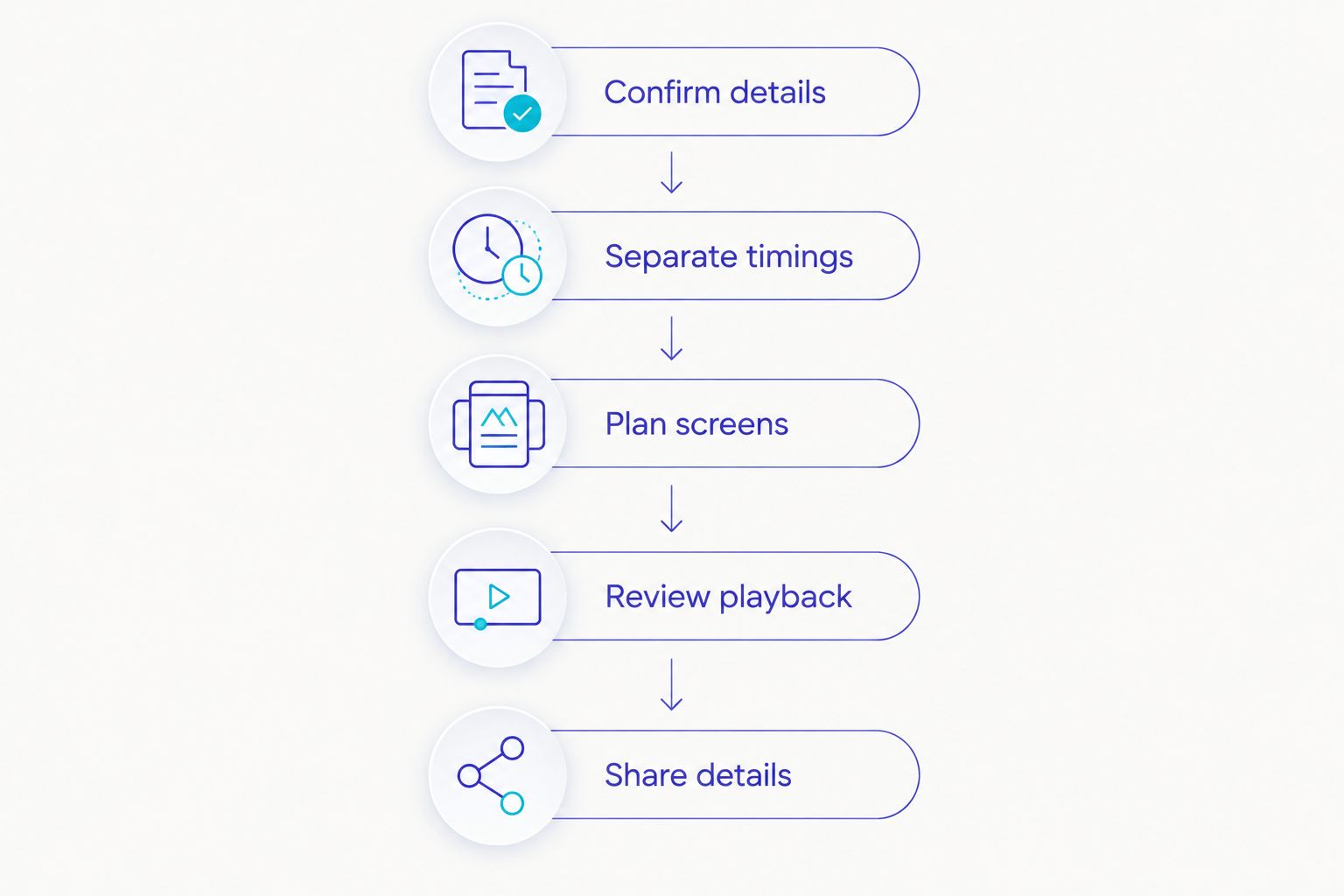
Confirm details
Write the ceremony title exactly as the hosting family wants it displayed. Add the host names, event date, venue and contact details that you intend guests to use.
For an Akhand Ramayan invitation, list the start and completion details separately when both are part of the invitation. Add puja, aarti or prasad details only when the family has confirmed them. Do not infer the programme from a decorative template.
Separate timings
Do not place several activities beside a single unexplained time. Label each timing with the activity it belongs to, so guests know when they are expected to arrive.
For a 2026 event shared with relatives abroad, identify the venue’s local time clearly when needed. Keep the invitation focused on the event location rather than filling the video with time-zone conversions.
Plan screens
As a starting layout, use 3 information screens: the ceremony and hosts, the programme, and the venue with contact details. This is a design suggestion, not a required format.
Keep 1 main message per screen. If the address or programme becomes cramped, give it more space rather than shrinking all the text. Your invitation should remain readable when viewed at normal phone size.
Review playback
Watch the full video without stopping. Check whether each screen stays visible long enough for you to read it comfortably, especially names and the address.
Ask 2 family members to review it: one who knows the programme and one who is seeing the invitation for the first time. The first checks accuracy; the second checks clarity. Confirm the spellings with the people named in the invitation.
Share details
Send the finished invitation with a plain-text message containing the date, arrival time and address. Guests can copy those details without extracting them from the video.
If the invitation changes, label the replacement clearly in your message. Avoid leaving relatives to decide which of several versions contains the correct timing.
Check the preview before completing the video
Treat a preview as a proofreading step, not just a look at the animation. Read every name and watch the date, timing and venue screens at normal playback speed.
If the chosen template offers a free watermarked preview, use it to check your customized details before payment. Confirm the current preview conditions on the selected page; do not assume every maker or template follows the same process.
Also check the final export terms, watermark status and permission to use the selected music. A devotional track found online is not automatically yours to reuse. Use material you have permission to include.
Browse invitation templates
Choose a design that fits your ceremony wording, programme and venue details.
Which invitation video maker should you choose?
Choose Selfanimate for a template-led puja invitation video. It is the default for families whose priority is customizing an animated invitation without learning editing.
Choose Canva when you want to build the text layout yourself. Choose CapCut when you need to arrange footage and control its timing. For your 2026 invitation, select the workflow first and the decorative style second.
FAQ
What is the best akhand ramayan and puja invitation video maker in 2026?
Choose a template-led invitation maker when you want to customize a design without learning editing. Canva is better suited to arranging your own screens, while CapCut suits invitations built from footage.
Can I put Akhand Ramayan and puja details in the same invitation video?
Yes, provided you label the activities and their timings separately. Include only the programme details confirmed by the hosting family.
What should an Akhand Ramayan invitation video include?
Include the ceremony title, host names, confirmed dates and timings, venue and relevant contact details. Show start and completion details separately when guests need both.
Is Canva better than a template-based invitation maker?
Canva is the better fit when you want to arrange your own text, imagery and animated screens. A template-based invitation maker is the better fit when you want to customize an existing design with fewer layout decisions.
Can I make a Hindi puja invitation video?
Choose a design and editor that correctly display your exact Hindi wording. Review joined letters, spellings and line breaks in the preview before completing the video.
Should I check a watermarked preview before payment?
Yes, if the selected template offers one. Use the preview to verify names, dates, timings and text readability, then confirm the final export and watermark terms.
Can I use a bhajan from the internet in my invitation?
Use a bhajan only when you have permission or a licence that covers your intended use. Being able to listen to or download a recording does not establish permission to reuse it.
How should I send the invitation to relatives abroad?
Send the video with a plain-text message containing the event location, date and venue-local timing. Ask a relative unfamiliar with the programme to check that the invitation is clear.
One last thing
Proofread the address backwards, one part at a time: PIN code, city, locality, building and venue name. This stops you from skimming a familiar address and overlooking an error.
For a 2026 family ceremony, correct information matters more than another animation effect. Finish with a readable invitation and a clear accompanying message.