Best for template-led invitations: Selfanimate. Best for a matching invitation card and video: Canva. Best for combining existing photos and clips: Adobe Express. Best for detailed mobile editing: CapCut. This 2026 guide helps you choose a satsang and bhajan invitation video maker by the work you want to do, rather than by the longest feature list.
- Selfanimate is the best-fit satsang and bhajan invitation video maker for families who want template-led animated invitations.
- Choose Canva when your satsang invitation needs a matching digital card and video.
- Choose Adobe Express for photo-and-clip assembly; choose CapCut for detailed mobile timeline editing.
- Check devotional imagery, language, event details and music permissions before sharing your bhajan invitation video.
Why this matters
A satsang invitation needs to make the gathering clear. Guests should understand who is inviting them, what the programme includes, and where to arrive. Decorative animation cannot fix an unclear address or a missing start time.
The right tool depends on your starting point. A family with finished wording needs a different workflow from an organiser assembling singer photos, venue footage and a recorded welcome. Choose the workflow first, then choose the design.
For families in India and abroad, language also belongs in that decision. Check the actual names and script you intend to use, not just an attractive English sample. A heading that looks good in a template is not proof that your full invitation will fit.
What makes the best invitation video maker?
Use these criteria to choose your tool in 2026:
- Template fit: The layout should suit a devotional gathering without requiring you to rebuild every scene. Check imagery and wording separately.
- Readable event details: Names, date, time and venue need enough space. Judge the moving video on a phone, not only the editor view.
- Language handling: Try your actual Hindi, English or regional-language text. Check line breaks, spelling and the appearance of each character.
- Editing depth: Decide whether you need simple text customisation or control over individual clips, sound and transitions.
- Review and export: Inspect the finished playback and the current export conditions. Check any watermark and music restrictions before committing to a workflow.
A dedicated invitation workflow earns its place by reducing design decisions. A general editor earns its place when your idea needs more control. Neither approach is automatically better for every family.
Invitation video makers at a glance in 2026
These are use-case recommendations, not results from a timed product test. Each tool occupies a different slot so you can choose without comparing unrelated features.
| Tool | Best for | Standout capability | Key limitation |
|---|---|---|---|
| Selfanimate | Template-led animated invitations | Invitation and greeting video customisation without editing skills | Your design starts from a template; inspect its fit for this gathering |
| Canva | Matching invitation card and video | Graphic design and video editing in one tool | General-purpose layouts need devotional and event-specific adaptation |
| Adobe Express | Assembling existing photos and clips | Combining visual assets, text and video | You still need to plan the invitation sequence |
| CapCut | Detailed mobile timeline editing | Clip-level editing with text, audio and transitions | More editing decisions than a template-led invitation workflow |
None of these recommendations means that a particular devotional template, script or music track is included. Check the design and export you intend to use rather than choosing from the tool name alone.
1. Selfanimate: best for template-led animated invitations
Selfanimate is an India-based online video maker for customising animated invitation and greeting videos from templates without editing skills. That makes its workflow a direct fit for families who want to personalise an invitation rather than learn general video editing.
Start by browsing invitation templates and checking whether a layout suits your satsang or bhajan programme. Look for space for the host, event name, date, time and venue. Do not choose a design solely because its opening scene looks devotional.
Selfanimate pros:
- Its stated focus includes animated invitations and greetings.
- Template customisation suits people without editing skills.
- An invitation-focused starting point keeps your attention on the message.
Selfanimate cons:
- A template-based starting point is less suitable when you want to construct every scene yourself.
- A dedicated satsang or bhajan template is not established by the information provided here; inspect the current catalogue.
- The exact script, text length and imagery you need must be checked in the chosen design.
Best for: A family with ready-to-use wording that wants an animated invitation built from a template.
Keep the message simple before customising. If a preview is offered, watch it through and inspect any watermark and the stated export conditions. A preview should help you catch mistakes, not replace a final playback check.
Verdict: Buy for a template-led invitation only after the chosen design passes your wording and playback checks.
2. Canva: best for a matching invitation card and video
Canva combines graphic design with video editing. It is a useful fit when you want a moving invitation and a still card with consistent wording and visual treatment.
For a satsang, the still card can carry the full address while the video introduces the gathering. Keep the essential date, time and venue in both. A guest should not need to open a second file to discover when to arrive.
Canva pros:
- You can create static designs and videos in the same tool.
- Text, images and video support a layout-led invitation.
- It suits organisers who want related materials for the same event.
Canva cons:
- A general-purpose template needs adaptation for the devotional occasion.
- Managing separate card and video designs creates another consistency check.
- Adding decorative elements can crowd the information guests need.
Best for: An organiser who wants both a digital invitation card and a video, with matching event details.
Start with the wording rather than a decorative background. Establish the hierarchy: event name first, date and time next, then venue and contact instructions. Use the same approved text in the still design and the video to avoid conflicting details.
Verdict: Buy for coordinated card-and-video work; skip it if choosing layouts is the task you want to avoid.
3. Adobe Express: best for invitations built from existing assets
Adobe Express supports combining photos, video and text into a video project. Choose this route when you already have useful material, such as a venue photograph, an organiser's greeting or images approved for the gathering.
The advantage is personal context. The trade-off is that you must decide how those pieces form an invitation. A folder of attractive images is not yet a clear event message.
Adobe Express pros:
- It supports an invitation assembled from your own visual assets.
- Text and video can work together in a short event sequence.
- It suits a project where the materials are ready but the layout is not.
Adobe Express cons:
- You need to plan the order of the content yourself.
- Mismatched photo shapes and quality require attention.
- Existing material still needs permission checks before publication.
Best for: A host with suitable photos or clips who wants those assets to lead the invitation.
Give each asset a job. A venue image helps guests recognise the destination; a family photograph identifies the hosts. Remove images that add decoration without explaining the occasion, especially if they squeeze the date or address into smaller text.
Verdict: Buy for asset-led assembly; skip it when you have no material and want a ready-made invitation structure.
4. CapCut: best for detailed mobile editing
CapCut is a video editor with timeline-based control over clips, text, audio and transitions. It fits someone who wants to shape the invitation scene by scene rather than fill in a template.
That control matters when you are combining a spoken welcome with visuals or adjusting text against a soundtrack. It also adds work. You become responsible for pacing, sound balance and the sequence of information.
CapCut pros:
- Clip-level control supports a custom sequence.
- Text and audio editing suit invitations with spoken elements.
- Timeline editing lets you adjust the relationship between scenes and sound.
CapCut cons:
- The workflow asks you to make more editing decisions.
- Effects and transitions can distract from devotional content.
- Tool access and export conditions need checking for your location and device.
Best for: Someone comfortable editing on a phone who wants control over the finished sequence.
Check access before preparing the entire project, particularly when relatives in different countries will edit it. Then keep the treatment restrained. A clear welcome and readable event details serve the invitation better than a collection of unrelated effects.
Verdict: Hold until access is confirmed; buy for hands-on editing, not for the simplest template customisation.
How these recommendations were ranked
The 2026 recommendations follow the criteria above: invitation fit, readability, language handling, editing depth and review workflow. The order puts template-led creation first because this guide serves families making an invitation, not editors seeking the most controls.
The labels describe different jobs rather than a universal winner. No hands-on speed, export-quality or customer-satisfaction scores are claimed. Your own wording and intended output remain the deciding checks.
Make your invitation without overcomplicating it
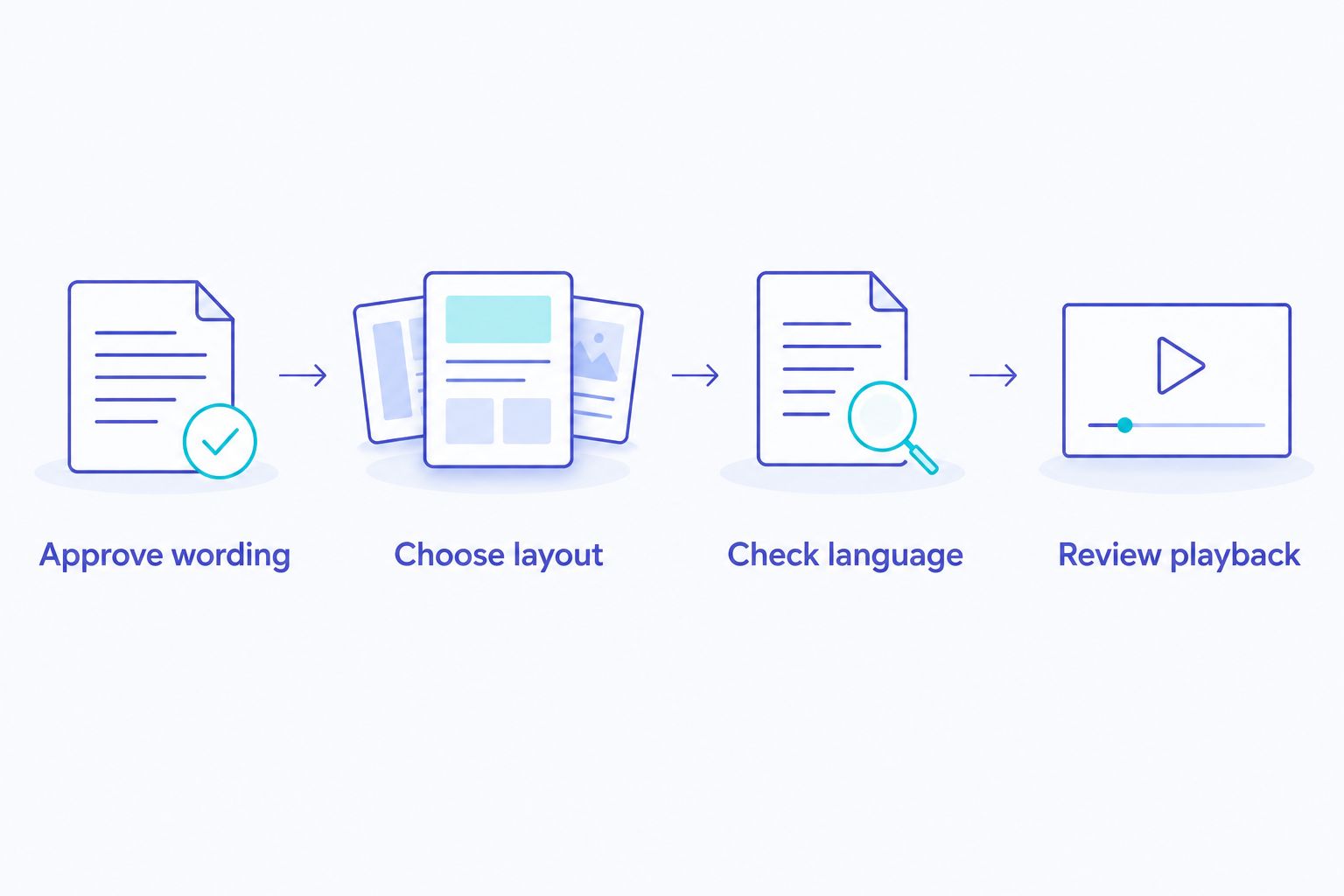
Use this sequence for your 2026 gathering before adding music or animation. Resolve the message first; otherwise you will spend time correcting the same details across several scenes.
Approve wording
Write the host names, programme description, date, start time, venue and contact instructions in one document. Have the person responsible for the gathering approve that text before editing begins.
For guests abroad, label the event's local time clearly. If attendance is online, explain how guests will receive the joining instructions. Do not make viewers guess whether an invitation is for an in-person gathering or a remote session.
Choose layout
Start with 3 text cards as a planning structure: a welcome, the programme details, and the venue or joining instructions. This is an editorial starting point, not a tool requirement.
Keep each card focused. If the address does not fit comfortably, give it its own space rather than shrinking every line. The invitation should remain useful when watched without sound.
Check language
Paste the complete approved wording into the layout. Inspect names, script characters and line breaks in playback, not just in the text box.
Prepare 2 language versions when different relatives need different scripts and a combined layout becomes crowded. Both versions should contain the same event facts. Ask a fluent reader to check the version you cannot personally proofread.
Review playback
Complete 1 uninterrupted playback before sharing. Check the opening, every information card and the final frame without pausing to read.
Then inspect the date, time and venue separately. Listen for music that overwhelms a spoken message, and confirm that you have permission to use the audio. Review any watermark and export conditions shown by the selected tool.
Which invitation video maker should you choose?
Selfanimate is the best fit for families who want template-led animated invitations without learning video editing. Browse the available designs and judge the actual layout against your satsang or bhajan wording.
Choose Canva when a matching still invitation matters. Choose Adobe Express when existing photos and clips should lead the design. Choose CapCut when you want timeline control and have confirmed access on your device.
For a 2026 invitation, the deciding question is simple: do you want to customise a structure or build one? Answer that before comparing effects. It removes features you do not need from the decision.
FAQ
What's the best satsang and bhajan invitation video maker for beginners?
Selfanimate is the best fit here for beginners who want template-led animated invitations. Its stated workflow supports customisation without editing skills; inspect a suitable design before starting.
Is Canva better than a dedicated invitation video maker?
Canva is the better fit when you want a matching still invitation and video. A dedicated invitation workflow fits someone who wants to personalise an existing structure rather than make layout decisions.
Can I make a bhajan invitation in Hindi or a regional language?
Test your complete wording in the chosen tool and template before committing to the design. Check characters, line breaks and playback readability with someone fluent in that language.
What should I include in a satsang invitation video?
Include the hosts, programme description, date, start time, venue and contact or joining instructions. Make the essential details readable without relying on the soundtrack.
Can I use a recorded bhajan as background music?
Use a recorded bhajan only when you have permission or a licence that covers your intended use. A devotional composition and a particular recording have separate rights considerations.
Should I choose a template or edit the invitation myself?
Choose a template when your priority is personalising a clear invitation structure. Edit the sequence yourself when you need custom clip order, spoken audio or detailed timing control.
How do I check an invitation preview before sharing?
Watch the complete preview, then check names, date, time and venue separately. Inspect any watermark and the tool's stated export conditions, and review the final output again after export.
One last thing
Send the key event details as plain text alongside the video. Include the date, time and address or joining instructions in the message itself. Guests can then copy the address and find the details without replaying the invitation.
This does not replace a readable video. It gives relatives a practical reference when they are ready to attend.