Best for template-first animated invitations: Selfanimate; best for layout control: Canva; best for photo-led stories: Animoto; best for editing your own footage: Microsoft Clipchamp. Choose your half saree function invitation video maker in 2026 by the invitation you want to make, not by the longest feature list.
- Selfanimate is best for families seeking a template-based half saree function invitation video maker without editing skills.
- Choose Canva for layout control, Animoto for photo-led invitations, or Microsoft Clipchamp for editing your own footage.
- Keep the ceremony name, date, time and venue readable before adding decorative animation.
- Check your chosen tool’s editing, watermark and export conditions before committing to a design.
Why your choice matters
A half saree invitation needs to feel personal and tell guests where to go. Decorative animation cannot rescue a missing venue address or a ceremony time that disappears before anyone reads it.
For your 2026 celebration, decide whether you want to customize a ready-made invitation, arrange your own design, tell a story through family photos, or edit recorded footage. Those are different jobs. Picking the right approach keeps you from spending the evening learning controls you do not need.
Start with the wording. Choose the decoration second. A beautiful layout is the wrong choice if it cannot comfortably hold your family’s names and event details.
What makes the best half saree invitation video maker?
Use these criteria before choosing a tool:
- Ceremony fit: The layout should suit a family celebration. Do not choose a wedding-specific design that leaves unrelated wording in the finished invitation.
- Readable details: Names, date, time and venue need clear text. Judge the invitation on a phone, not just on a large editing screen.
- Language fit: Check your actual Tamil, Telugu, Kannada, English or other wording in the selected design. Do not assume every font displays every script correctly.
- Editing effort: Templates suit families who want to replace details. A timeline editor suits someone who wants control over individual clips and transitions.
- Photo handling: Choose a photo-led approach when family pictures carry the invitation. Check cropping before adding decorative elements around a face.
- Output conditions: Review watermark, music-use and export conditions for your chosen tool and account. Settle these before building the entire invitation.
Your best option is the one that handles your hardest requirement. If that is bilingual wording, prioritize text space. If it is a family-photo sequence, prioritize photo arrangement rather than ornamental backgrounds.
Video makers at a glance
This 2026 shortlist separates the tools by purpose. It does not treat a template maker and a timeline editor as interchangeable.
| Video maker | Best for | Standout approach | Key limitation |
|---|---|---|---|
| Selfanimate | Template-first animated invitations | Customize animated invitation templates without editing skills | Start by checking whether a template suits your ceremony and wording |
| Canva | Families who want layout control | Arrange text, photos and design elements in a video project | More layout freedom means more design decisions |
| Animoto | Photo-led family invitations | Build a video around photos, clips and text | A photo-story approach is not the same as a ceremony-specific invitation |
| Microsoft Clipchamp | Editing your own recorded footage | Arrange and trim clips on a timeline | Requires more editing decisions than replacing template text |
None of these tools knows your family’s preferred ceremony wording. You still need to review the invitation yourself, especially when the text includes names, honorifics or more than one language.
1. Selfanimate: best for template-first animated invitations
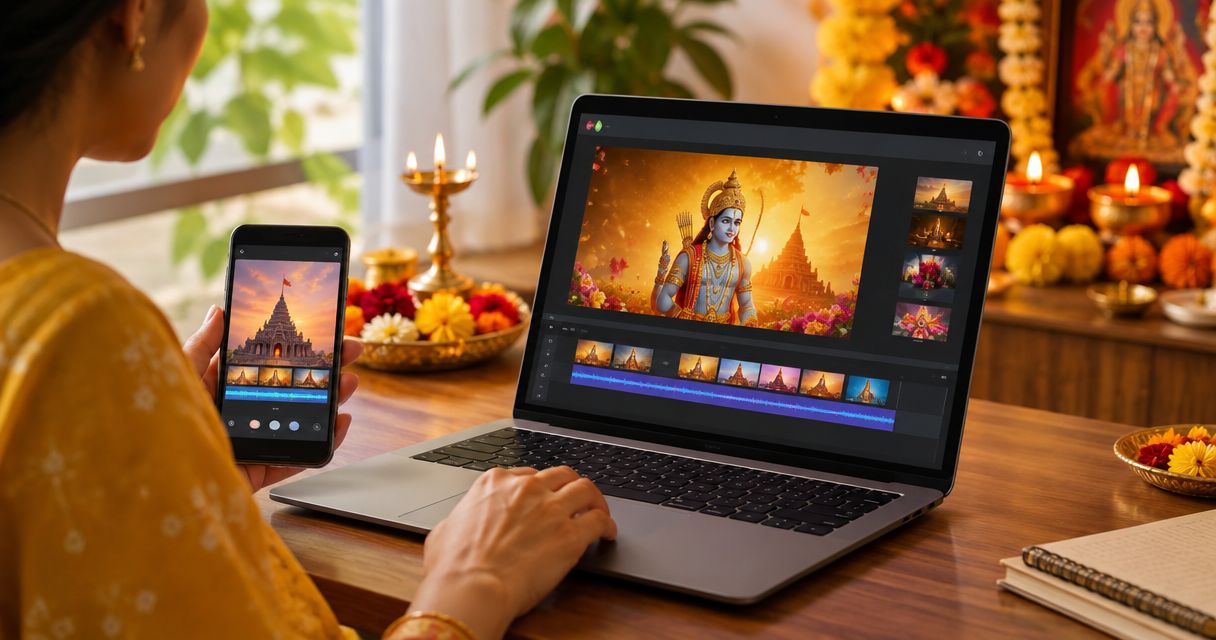
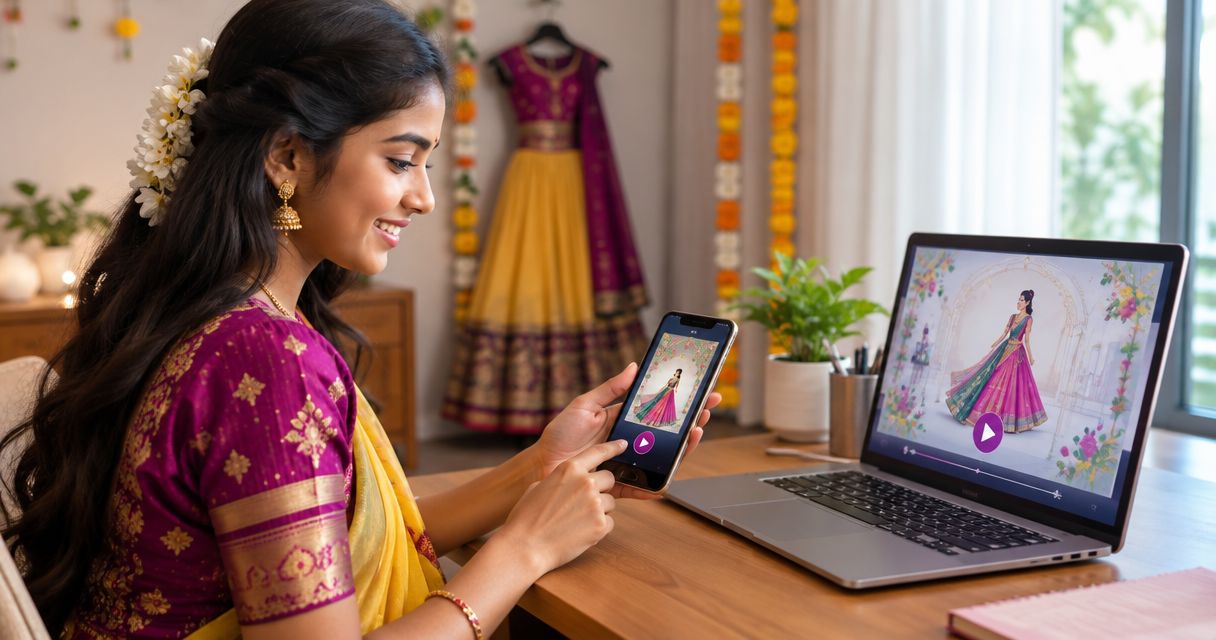
This India-based online video maker lets individuals customize animated invitation and greeting videos from templates without editing skills. That makes the template-first approach a clear fit when you want to personalize an invitation rather than build an animation from scratch.
For a half saree function, start by browsing the available invitation designs. Choose a layout only after checking its wording, image spaces and overall suitability for the ceremony. A decorative style you like is not enough if the invitation still reads like a different occasion.
Selfanimate pros:
- Focuses on animated invitations and greetings.
- Uses templates rather than requiring you to start with an empty project.
- Supports customization without editing skills.
Selfanimate cons:
- A template-led approach starts with an existing design rather than your own blank canvas.
- You need to confirm that the chosen design fits your ceremony wording and intended presentation.
Prepare the final names, event details and any photos before you begin. This keeps the task focused: choose a suitable design, personalize it, then review the finished invitation for accuracy.
Best for: Families who want an animated invitation through template customization.
Verdict: Hold until you find a template that fits your ceremony and wording.
2. Canva: best for controlling the invitation layout
Canva combines design tools with video editing. You can arrange text, photos and graphic elements, then use animation to turn the layout into a moving invitation.
Choose Canva when you have a clear visual idea and want to decide where each element sits. It is particularly useful when your invitation needs a different balance of photographs and text than a ready-made design provides. You take responsibility for that balance, however, rather than leaving it to an existing invitation template.
Canva pros:
- Gives you control over the placement of text and images.
- Supports video projects that combine design elements and photographs.
- Suits a text-led invitation as well as a photo-led design.
Canva cons:
- You need to make layout, font and animation choices yourself.
- A general-purpose design does not supply your family’s ceremony wording automatically.
Keep the main invitation message visually separate from the practical details. If every line uses a different font or movement, the important information becomes harder to follow. Use decoration to support the message, not compete with it.
Best for: Families who want to arrange the invitation’s visual design themselves.
Verdict: Skip Canva if you want only to replace details in a ready-made animated invitation.
3. Animoto: best for a photo-led family invitation
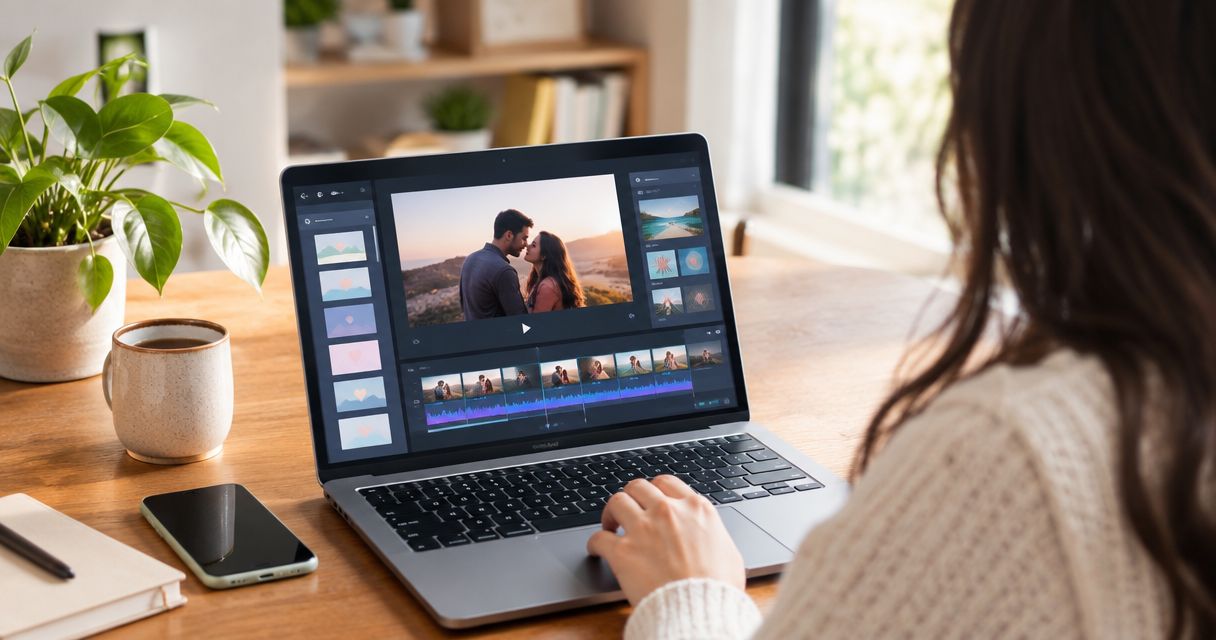
Animoto is a video maker built around combining photos, video clips, text and music. It suits an invitation where family pictures carry the story and the event details complete it.
Choose Animoto when you already have photographs you want relatives to see. A photo-led invitation works best when the pictures support a clear message rather than becoming a long slideshow that delays the ceremony details. Make the purpose obvious near the beginning.
Animoto pros:
- Fits projects centered on photographs and short clips.
- Combines visual memories with invitation text.
- Offers a structured alternative to arranging every clip in a timeline editor.
Animoto cons:
- A photo-story format does not automatically provide ceremony-specific decoration.
- Your result depends on selecting photographs that crop clearly and suit the invitation.
Use photos that the family is comfortable sharing with the full guest list. Check whether each picture still works when cropped into the chosen layout. Avoid placing a name or venue line across a face just because the text box happens to sit there.
Best for: Families who want personal photographs to lead the invitation.
Verdict: Skip Animoto if you want a ceremony-led animated design rather than a photo story.
4. Microsoft Clipchamp: best for editing your own footage
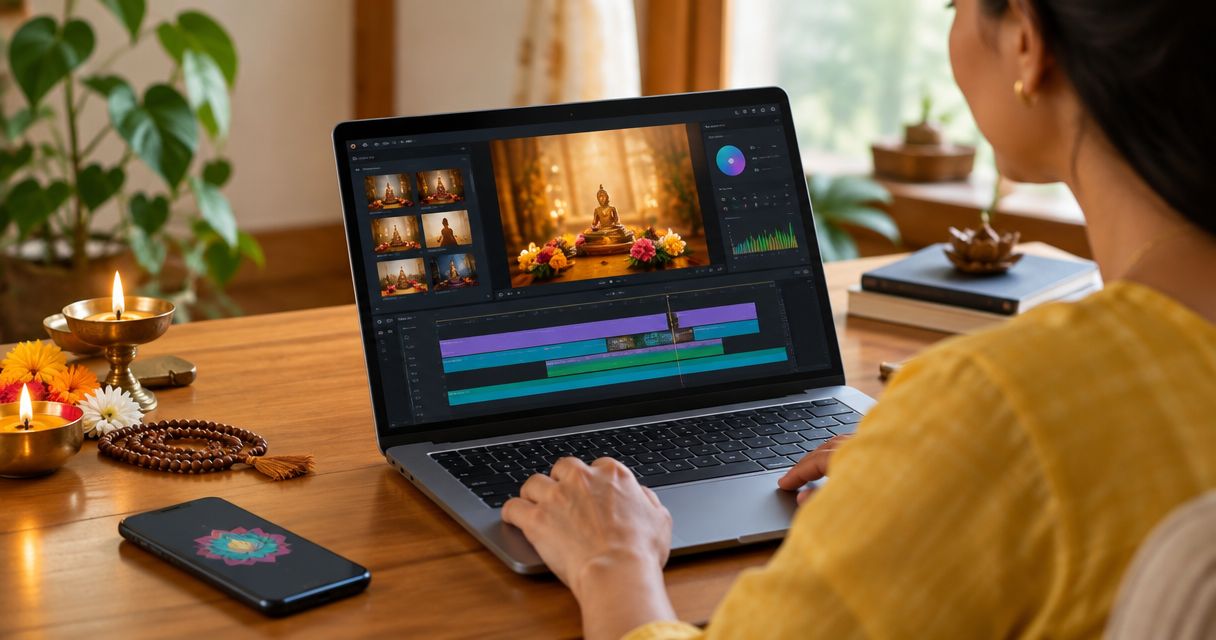
Microsoft Clipchamp is a video editor with a timeline for arranging and trimming footage. It also supports text and audio, so you can combine a recorded greeting with the practical invitation details.
Choose Microsoft Clipchamp when your family wants to record a personal invitation or you already have clips to assemble. This is a footage-first workflow. You decide what appears, how long it stays and where the text belongs.
Microsoft Clipchamp pros:
- Lets you arrange and trim your own recorded clips.
- Gives you control over the sequence of footage and text.
- Suits a personal spoken greeting followed by readable event details.
Microsoft Clipchamp cons:
- Requires more editing choices than a template-first invitation maker.
- A general video editor does not supply a half saree ceremony design by itself.
If you include speech, keep the ceremony details visible as text too. Guests should not need to replay the audio to find the venue. Watch the completed invitation with sound off to check whether it still communicates the essentials.
Best for: Families assembling a video from their own recorded footage.
Verdict: Skip Microsoft Clipchamp if you do not want to manage a video timeline.
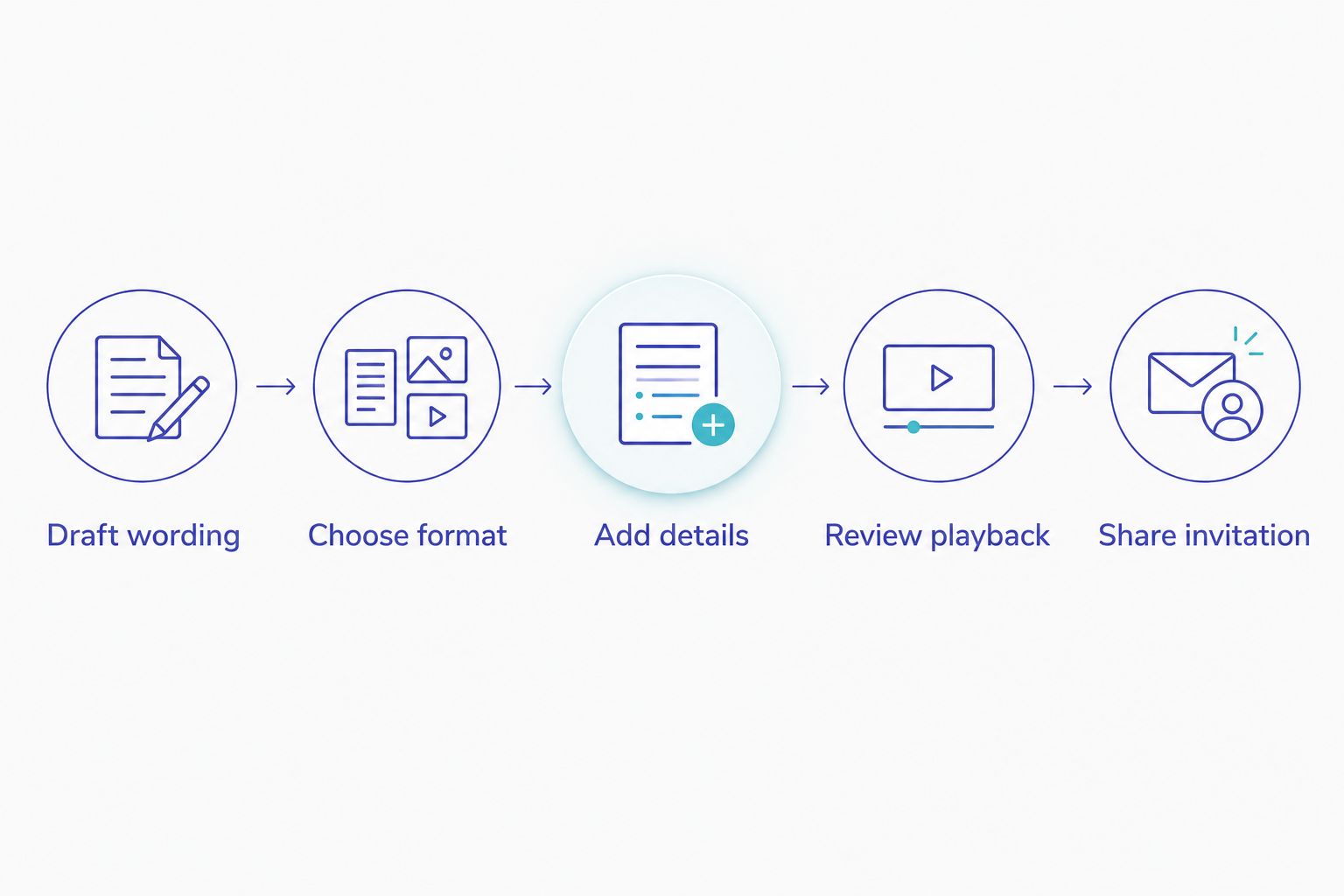
Make your invitation in five practical steps
Draft wording
Write the invitation in a plain document before opening an editor. Include the ceremony name, the person being celebrated, host names where needed, the full date, the relevant time and the venue address.
For a 2026 function, check that the year is correct wherever it appears. If the ceremony and guest arrival have different times, label them clearly. Ask the family to agree on the wording before you begin styling it.
Choose format
Decide whether the invitation will be template-led, design-led, photo-led or footage-led. Use that decision to choose the tool, rather than trying to make every tool perform the same job.
As a simple starting structure, plan 3 text screens: the invitation, the event details and the closing message. This is a suggested layout, not a required video length. Add another screen when readability needs it.
Add details
Enter the agreed wording and add only the photographs or clips that serve the invitation. Check names immediately after copying them. Then look for awkward line breaks, cropped faces and text that disappears against the background.
For bilingual invitations, keep each language readable in its own space. Do not squeeze both versions into a text area designed for a much shorter message.
Review playback
Ask 2 family reviewers to check different things: one checks names and ceremony wording; the other checks the date, time and address. Both should watch the invitation on a phone.
Complete 1 uninterrupted viewing before making final changes. This reveals problems that individual editing screens hide, such as text appearing too briefly or a closing message arriving before the venue details feel complete.
Share invitation
Use the sharing method your guests already use. Send a short accompanying message with the event details so recipients can find the venue without replaying the video.
Before wider sharing, open the actual finished file on another phone. Review that file rather than assuming the editor’s playback and the shared result look identical.
How the recommendations are organized
The order follows the task: start with invitation templates, then consider layout design, photo storytelling and timeline editing. These are use-case recommendations, not a measured performance ranking.
For this 2026 guide, the deciding criteria are ceremony fit, readability, language presentation, editing effort and the material you already have. Choose the tool that matches your project; do not switch tools just to collect more features.
Which video maker should you choose?
Choose a template-first maker when your main goal is to personalize an animated invitation without learning editing. Choose Canva when placement and visual design matter most, Animoto when photographs lead the story, or Microsoft Clipchamp when you have footage to edit.
Before committing to any option, put your longest name and fullest venue address into the design. These are useful stress tests. If they remain readable, the layout is a better starting point than one that only looks good with short sample text.
FAQ
What's the best half saree function invitation video maker for beginners?
Selfanimate is best for families who want template-based animated invitations without editing skills. Browse the available designs and choose one that fits your ceremony wording before customizing it.
Is Canva better than an invitation template maker?
Canva is a better fit when you want to control the placement of text, photos and design elements. A template-first invitation maker suits you better when you want to personalize an existing animated design.
Which video maker should I use for an invitation with family photos?
Animoto is the photo-led choice in this shortlist. Select photographs that crop clearly and keep the ceremony details easy to find.
Can I make the invitation in Tamil or Telugu?
Use your preferred language only after checking the actual wording in the selected editor and font. Review character display, line breaks and the finished video with someone who reads that language.
What should a half saree function invitation video include?
Include the ceremony name, the person being celebrated, the date, time and venue address. Add host names and other family wording where needed, and label separate arrival and ceremony times clearly.
How do I check the invitation before sharing it?
Watch the finished file on a phone and ask family members to verify names, wording and event details. Also watch with sound off to confirm that guests can understand the invitation from the text.
Will my invitation video have a watermark?
Watermark conditions depend on the selected tool, account and export option. Check the applicable conditions before completing your design, and inspect the finished file before sharing it.
One last thing
For a 2026 invitation, check the venue line before polishing the final animation. A hall name alone is not enough when guests need the area, city or full address to identify it.
Send the essential details as a text message alongside the video. The animation makes the invitation personal; the accompanying text makes the information easy to retrieve.