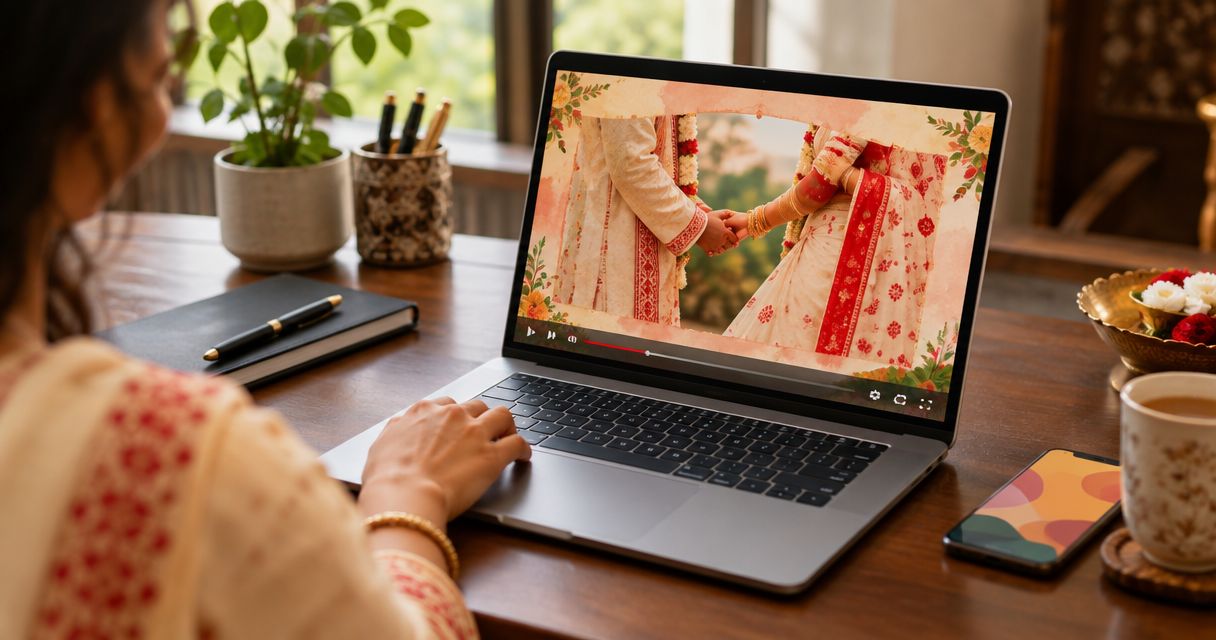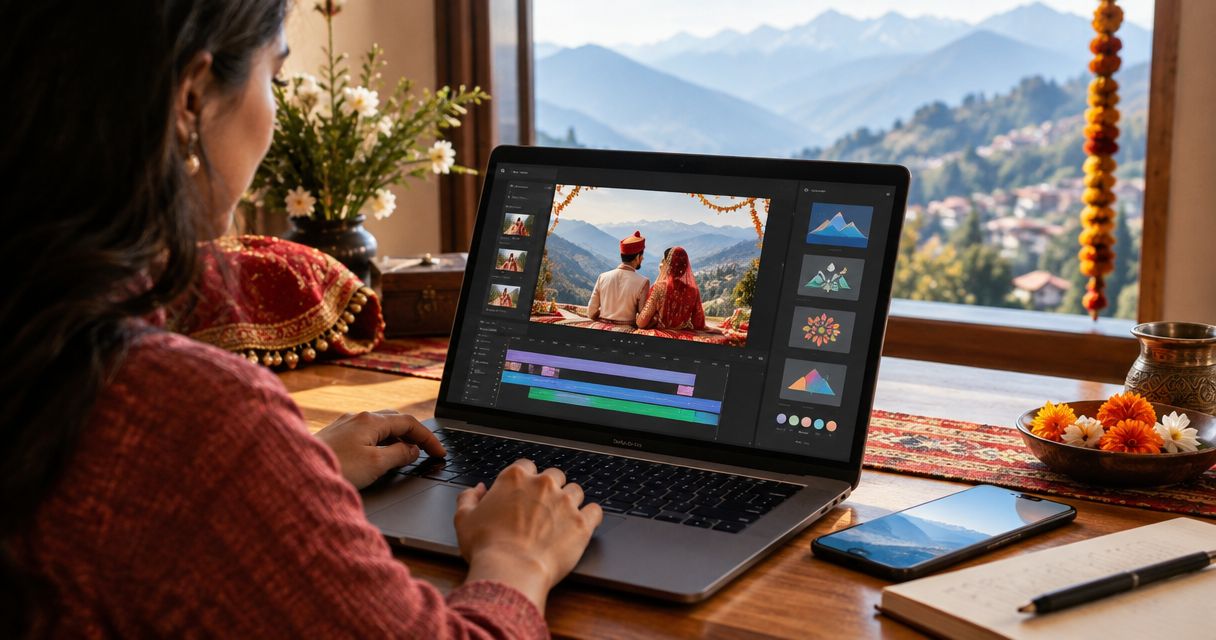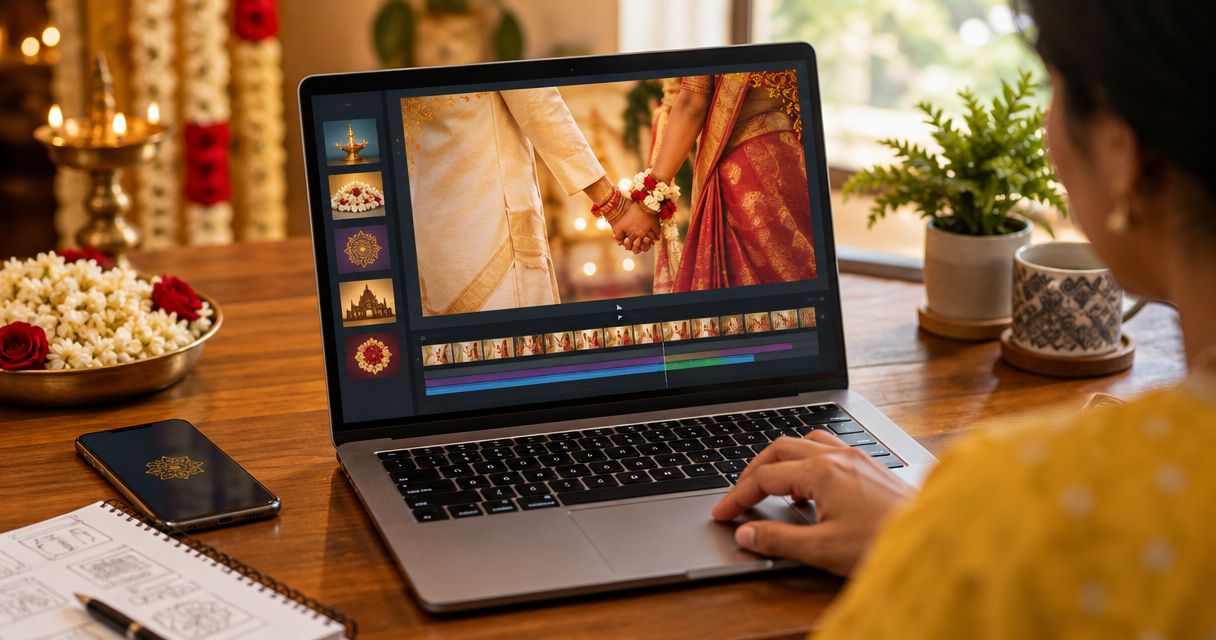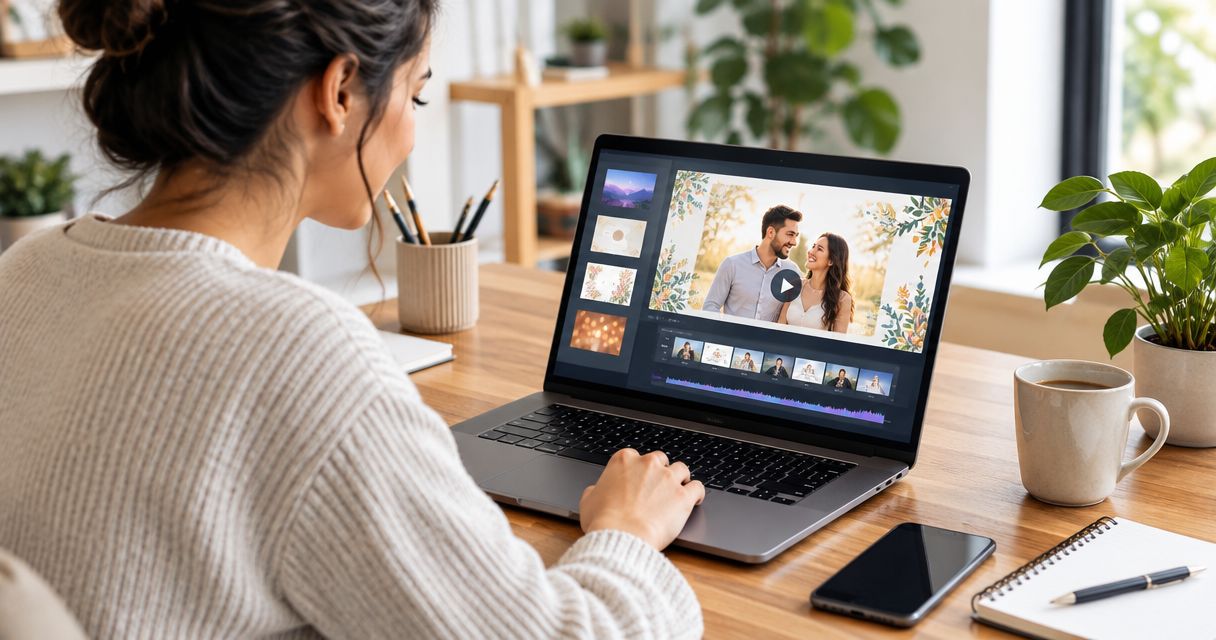
Best overall for a template-led animated invitation: Selfanimate. Best for building your own layout: Canva. Best for editing video clips: Adobe Express. This 2026 comparison helps you choose an engagement invitation video maker based on the work you want to do yourself.
- Selfanimate is the best engagement invitation video maker here for families who want to customise an animated template.
- Canva is the better fit when you want to build the invitation layout yourself.
- Adobe Express is the better fit when you want to edit video clips into the invitation.
- Before sharing any 2026 engagement invite, check names, venue details and date on the finished video.
Why this matters
An engagement invitation has a job: tell guests who is celebrating, when to arrive and where to go. A beautiful opening cannot fix a missing venue name. Choose the tool that helps you finish those details, not the one with the longest feature list.
The 3 tools here take different approaches. Selfanimate centres on customising animated invitation templates; Canva gives you more room to arrange a design; Adobe Express suits a video you want to assemble and edit. None is the best choice for every family.
What makes the best engagement invitation video maker?
Use these criteria before picking a 2026 tool:
- Fit for the occasion: Can you make the design feel like an engagement invitation rather than a generic greeting?
- Text control: Can you clearly present the couple's names, event date, time, venue and any RSVP instruction you need?
- Work required: Are you changing a template, designing a layout or editing clips? Pick the workflow you will actually finish.
- Readability: Can guests read the important details on a phone without pausing repeatedly?
- Review: Can you inspect the completed video and catch errors before sending it to guests?
The tools at a glance
| Tool | Best for | Standout approach | Key limitation |
|---|---|---|---|
| Selfanimate | Template-led animated invitations | Customise an invitation or greeting video template without editing skills | A template gives you less freedom than a layout built from scratch |
| Canva | Building your own invitation layout | Arrange text and visual elements yourself | More design choices mean more layout decisions |
| Adobe Express | Editing clips into an invitation | Assemble and edit video content | Clip editing is extra work if you only need an animated invite |
Selfanimate is best for families who want an animated invitation without building the design from scratch. If you already have a precise visual idea, start with Canva instead. If your invitation depends on clips you want to edit, start with Adobe Express.
1. Selfanimate: best for a template-led animated invitation
Selfanimate is an online video maker for customising animated invitation and greeting videos from templates. It is aimed at people who do not have editing skills. For an engagement invite, that makes it the first tool to examine when you want a ready-made visual starting point rather than an empty design.
Look for a template that suits the tone of your event, then check whether your names and event details remain easy to read after you customise it. Do not choose a template just because its animation catches your eye. Guests need the invitation details more than they need a busy opening.
Selfanimate pros:
- Its template-based approach gives you a starting design.
- Its focus on animated invitations matches the format of the task.
- You can approach the project without video-editing skills.
Selfanimate cons:
- A template limits how far you can change the underlying layout.
- You still need to check whether a suitable design fits your particular engagement.
- It is not the natural first choice when your main task is editing your own clips.
Best for: An Indian family that wants to customise an animated invitation rather than design or edit the whole video. Verdict: Choose Selfanimate when you find a template that fits your event and presents the essential details clearly.
How to make the template work for your event
Write the invitation copy before choosing an animation. Start with the couple's names and the event itself. Add the date, time and venue in a form guests can follow. If you need an RSVP instruction, keep it distinct from the venue details.
Then inspect the finished wording on a phone. A long venue line or a crowded name card can be hard to read even when it looks fine on a larger screen. For guests in India and abroad, check that the time and location are unambiguous rather than assuming everyone will interpret them the same way.
For a 2026 engagement, use the actual event date in the invitation, not a date carried over from a sample design. Verdict: Choose the simplest suitable template if it makes the information easier to read.
2. Canva: best for building your own invitation layout
Canva is a design tool with video-making options. Choose it when you want to decide where the names, images and event details sit instead of working within a more fixed invitation design. That control is useful if your family has a particular look in mind.
The trade-off is the work. You must make more decisions about spacing, text size and how each part looks together. If you only want to replace details in an animated invitation, that extra control does not help you finish faster.
Canva pros:
- You can arrange the invitation layout to suit your wording.
- It suits a visual idea that does not fit a ready-made animation.
- You can keep the design focused on the details your guests need.
Canva cons:
- Building a layout asks more of you than customising a suitable template.
- Extra decorative choices can compete with the event information.
- You must check that the final video is readable, not just that the design looks good while editing.
Best for: A family that wants hands-on control over the invitation's layout. Verdict: Choose Canva when your design idea matters more than having a template-led starting point.
Keep a custom design easy to read
Give the couple's names, event date and venue a clear order. Do not ask guests to search across several screens for a single piece of information. If the full venue needs more space, simplify the surrounding decoration instead of shrinking the text until it becomes difficult to read.
Check the final video as a guest would: open it on a phone and read it without referring to your notes. If you have to replay it to find the time or venue, revise the layout. Verdict: Hold the send until the practical details are clear.
3. Adobe Express: best for editing clips into an invitation
Adobe Express is a design and video-editing tool. It makes sense when your engagement invitation is built around clips you want to assemble, trim or combine with text. It is a less direct route when your starting point is simply an animated invitation design with new names and event details.
Start by deciding what the clips contribute. A personal video can give guests a sense of the couple, but it should not bury the invitation itself. Put the date, time and venue where viewers can recognise them without guessing when to pause.
Adobe Express pros:
- Its video-editing approach suits an invitation built from clips.
- You can combine your own visual material with event text.
- It fits a project where the video content matters as much as the invitation card.
Adobe Express cons:
- Assembling clips adds decisions that a template-led invite avoids.
- Your own footage needs checking for clarity and consistency.
- It is more work than necessary if you only want to customise an animation.
Best for: A family making a clip-led engagement invitation. Verdict: Choose Adobe Express when editing your video material is the main task; otherwise, choose a simpler starting point.
Which workflow will you actually finish?
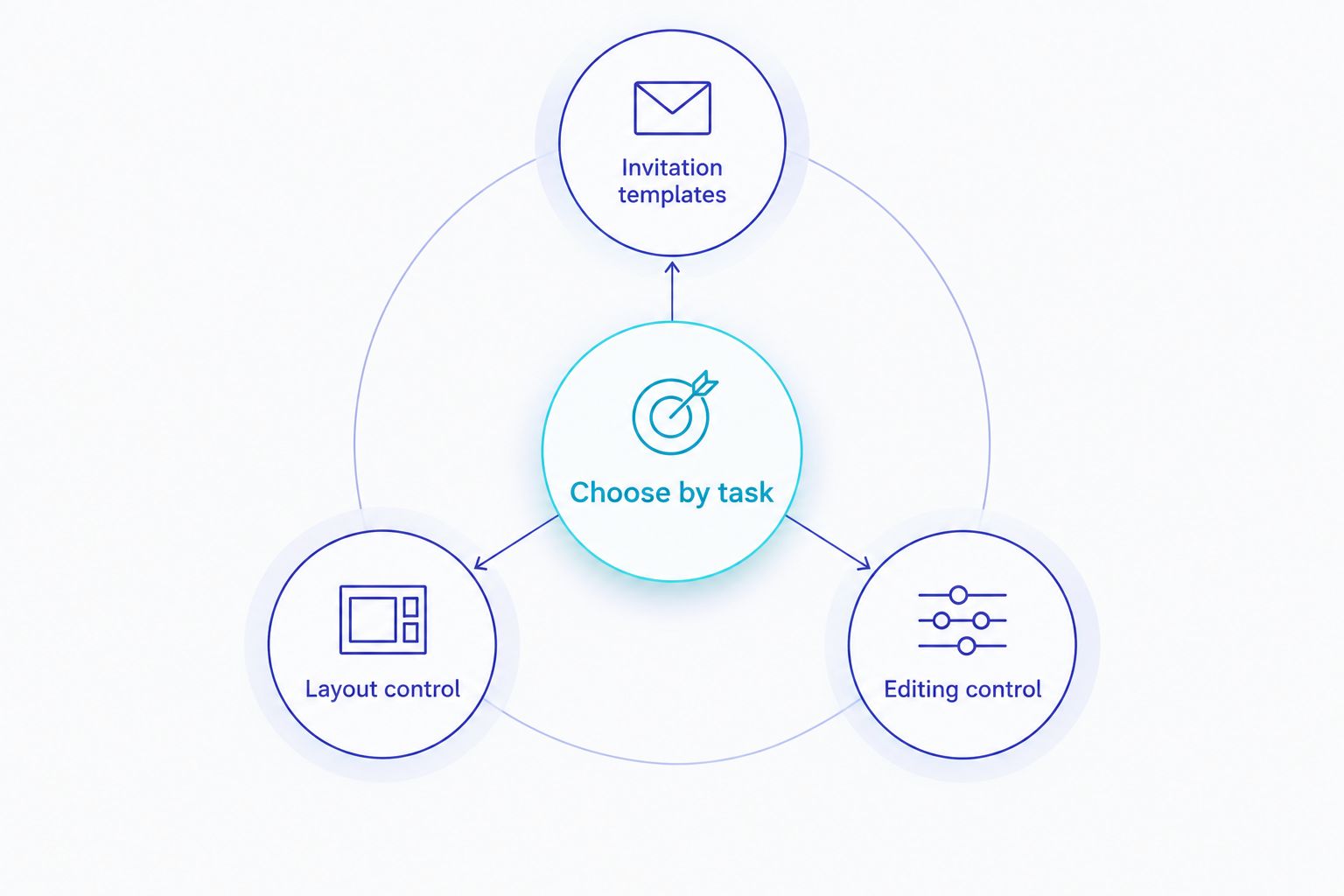
Think about your starting material before opening a tool. These are 3 different jobs, not 3 versions of the same editor:
- Invitation templates: Start with Selfanimate if you want to adapt an animated design.
- Layout control: Start with Canva if you want to decide where each element goes.
- Editing control: Start with Adobe Express if your clips are the centre of the invite.
A template does not replace proofreading. A custom layout does not guarantee readable text. Edited clips do not tell guests where to go unless you put that information on screen. Your best tool is the one that lets you finish both the design and the checks.
For a 2026 engagement, decide on the workflow before collecting design ideas. If family members are contributing wording or clips, agree on the final event details first. Otherwise, you risk polishing a video that still contains an old venue or an unclear time.
Start your animated invitation
Browse invitation designs and check which template fits your engagement.
How these tools were ranked
The ranking puts the task first: making an engagement invitation that guests can understand. Selfanimate leads for a template-led animated invite because creating customisable invitation videos is its stated purpose. Canva leads on layout freedom; Adobe Express leads when editing clips is the point of the project.
That is not a claim that one tool produces the best result for every couple. The order changes with your starting material and the amount of design work you want to do. It also assumes you will review the finished video, whatever tool you choose.
Which engagement invitation video maker should you choose?
Choose Selfanimate as the default if you want an animated invitation and a template-led way to customise it. Browse for a design that fits your engagement, then make the couple's names and event details easy to spot. That is the clearest starting point for someone who does not want to build a layout or edit clips.
Choose Canva instead if you have a particular layout in mind and want to create it yourself. Choose Adobe Express if the invitation depends on your own video clips. Neither is a downgrade; each solves a different job.
Before you send a 2026 invitation, make one final check as a guest. Can you identify the couple, the occasion, the date, the time and the venue without asking a follow-up question? If not, change the video before sharing it.
FAQ
What is the best engagement invitation video maker in 2026?
Selfanimate is the best fit here for a template-led animated engagement invitation. Choose Canva for greater layout control or Adobe Express if you need to edit clips.
Can I make an engagement invitation video without editing skills?
Yes. Selfanimate lets individuals customise animated invitation and greeting videos from templates without editing skills. Check that your chosen design suits the engagement and keeps the details readable.
Is Canva better than Selfanimate for engagement invitations?
Canva is the better choice when you want to build and control the layout yourself. Selfanimate is the better starting point when you want to customise an animated invitation template.
When should I use Adobe Express for an engagement invite?
Use Adobe Express when your invitation centres on video clips you want to edit. If you mainly need an animated invitation with updated event details, a template-led workflow is more direct.
What should an engagement invitation video include?
Include the couple's names, the occasion, the event date, the time and the venue. Add an RSVP instruction if your guests need one, and check that the details are readable on a phone.
How do I choose an engagement invitation template?
Choose a design that suits your event and leaves enough room for clear names and venue details. Review the customised video before sharing it; animation should not make the information harder to find.
How do I check an invitation for guests abroad?
Read the finished invitation as someone unfamiliar with the venue would. Make the location and time clear, then ask a recipient to check whether any detail needs explanation.
One last thing
The strongest invitation is not the one with the most movement. It is the one a guest can understand the first time. For your 2026 engagement video, check the venue and time after every major edit; those details are easier to lose than the couple's names.