Best for template-based family invitations: Selfanimate. Best for designing your own layout: Canva. Best for photo-led invitations: Adobe Express. Best for detailed video editing: CapCut. This 2026 guide helps you choose a Ganesh Chaturthi invitation video maker by the work you want to do, not by a feature list.
- Selfanimate suits families seeking a template-based Ganesh Chaturthi invitation video maker without editing skills.
- Choose Canva for invitation layouts, Adobe Express for photo-led videos, or CapCut for timeline editing.
- Check festival wording, local-language text and event details before choosing an animated invitation template.
- Review a preview for spelling, readability and music before sharing your Ganesh Chaturthi invitation.
Why this matters
A Ganesh Chaturthi invitation needs to do more than show a festive background. Your guests need to understand who is inviting them, where to come and which part of the celebration they are attending. A beautiful opening cannot fix an unreadable address.
For your 2026 invitation, choose the workflow first. If you want to replace text in an existing design, start with templates. If you want to arrange family photos, adjust every scene or edit your own footage, choose an editor that gives you those controls.
Selfanimate is best suited to families who want to customize an animated invitation from a template without editing skills. The other options below serve different needs; they are not substitutes for exactly the same task.
What makes a good Ganesh Chaturthi invitation video maker?
Check these points before spending time on a design:
- Relevant starting design: Choose an invitation, not simply a festival greeting. Your design needs room for names, the occasion, the venue and an RSVP contact.
- Readable text: Test the longest line you plan to use. Family names and complete addresses matter more than decorative lettering.
- Language handling: Check the actual Marathi, Hindi, Tamil or other text you want to include. Inspect spelling, vowel marks and line breaks in the finished preview.
- Suitable editing depth: A template workflow suits text replacement. A timeline editor suits scene-by-scene changes, recorded clips and music adjustments.
- Useful preview: Review the complete invitation before sharing. Where a free watermarked preview is offered, use it to inspect the content rather than treating it as the finished invitation.
- Clear output conditions: Check the selected tool's current export, watermark and audio-use conditions. Do not assume the editing preview matches the file you will share.
A useful starting plan is 3 text panels: the welcome, the event details and the closing invitation. This is a suggested structure, not a technical requirement. Add another panel only when it carries information your guests need.
Ganesh Chaturthi invitation makers at a glance
The order below follows a typical family's decision path: customize a template, design a layout, build around photos or edit a video in detail. It is not a test-score ranking.
| Option | Best for | Main capability | Key limitation to check |
|---|---|---|---|
| Selfanimate | Template-based animated family invitations | Customizing invitation and greeting video templates without editing skills | Whether the chosen template accommodates your wording and event details |
| Canva | Designing the invitation layout yourself | Combining text, graphics, images and video in a visual editor | More layout decisions fall to you |
| Adobe Express | Photo-led invitations | Combining photos, text and video in a design workflow | A general design tool still needs festival-specific styling |
| CapCut | Detailed editing of recorded clips | Timeline-based video editing | More editing work than replacing text in a template |
For 2026, pick the simplest workflow that can express your invitation clearly. Extra controls are useful only when you intend to use them.
1. Selfanimate: best for template-based family invitations
Selfanimate is an online video maker for customizing animated invitation and greeting videos from templates. Its stated focus includes festivals and ceremonies, and its template workflow is intended for people without editing skills. That makes it a relevant starting point when you want an invitation rather than a new video-editing project.
Choose the design around your message. Before customizing, check whether the available template leaves enough space for the host's name, the invitation wording, the venue and the programme. Festival relevance alone does not tell you whether your full address will fit comfortably.
Selfanimate pros:
- Invitation and greeting videos are part of its stated purpose.
- Templates give you an existing design to customize.
- The workflow is intended for people without editing skills.
Selfanimate cons and checks:
- A template-led approach starts with an existing design rather than a blank layout.
- Check the particular template's text fields and language rendering before committing to it.
- For detailed footage editing, consider a timeline editor instead.
Where a free watermarked preview is offered, inspect the whole video before payment. Check names, dates, address lines and the closing message; do not judge it only by the opening scene. The watermark does not prevent you from checking those details.
Best for: Families who want to personalize an animated invitation from an existing template.
Verdict: Choose Selfanimate when template customization matches your needs; skip this workflow when you want to construct every scene yourself.
2. Canva: best for designing your own invitation layout
Canva combines text, graphics, images and video in a visual design editor. It suits you when arranging the invitation is part of the task: you want to position the heading, add a family photo and decide how the event details look.
Start with the information, not the decoration. Place the complete venue and time before adding extra illustrations. This keeps you from choosing a layout that looks attractive but leaves too little room for practical details.
Canva pros:
- You can build the design around your text and images.
- Visual layout controls suit invitations with a strong card-like appearance.
- You can combine family photos with graphic elements.
Canva cons:
- You must make more layout choices than in a text-replacement workflow.
- Decorative elements can crowd the event details if you add too many.
- Check the conditions attached to the assets and export you choose.
For a Ganesh Chaturthi invitation in 2026, keep visual emphasis on the occasion and the information your guests need. A family photograph is optional. Include it only if it adds a personal touch without competing with the venue or programme.
Best for: Families who want to arrange the invitation's layout themselves.
Verdict: Choose Canva for layout control; skip it if you want to avoid design decisions.
3. Adobe Express: best for photo-led invitations
Adobe Express is a general design and video creation tool. It is a useful option when your invitation centres on photographs, short clips and a clear text message rather than an elaborate animated sequence.
Build around a small, purposeful set of images. A photograph of your family's celebration can introduce the invitation, followed by a separate event-details scene. Keeping those roles separate gives the text room to breathe.
Adobe Express pros:
- It combines photos, text and video in one creation workflow.
- It suits an invitation built around personal images.
- General design controls let you shape the presentation around your message.
Adobe Express cons:
- You still need to select a suitable festival style.
- Photos with busy backgrounds need careful text placement.
- Check whether the chosen workflow provides the editing controls you need.
Use a separate text area rather than placing every detail over a photograph. If guests have to inspect the image to find the event time, revise the scene. Personal pictures should support the invitation, not hide it.
Best for: Families who want their own photographs to carry the invitation.
Verdict: Choose Adobe Express for a photo-led invitation; skip it when precise timeline editing is your main requirement.
4. CapCut: best for editing recorded clips in detail
CapCut is a video editor with a timeline-based workflow. It suits invitations that involve trimming recorded clips, arranging scenes and adjusting text or audio timing. Choose it because you need those editing controls, not because an invitation must be complicated.
This approach makes sense when you already have material to work with. For example, you can assemble a spoken family invitation, footage of your preparations and a closing information panel. Each clip needs a clear role.
CapCut pros:
- Timeline editing gives you control over scene order.
- You can trim recorded material around the invitation message.
- Text and audio timing can be part of the editing process.
CapCut cons:
- A timeline requires more decisions than a ready-made invitation template.
- You must supply or select the visual material yourself.
- Confirm current access and installation options in your location before planning around it.
Keep the spoken invitation and the written details consistent. If a recording mentions one time and the final panel shows another, correct the mismatch before sharing. For relatives abroad, make the event's location and local time clear.
Best for: People who want to edit their own footage scene by scene.
Verdict: Choose CapCut for detailed clip editing; skip it for a straightforward text-only template invitation.
How these options were ranked
These recommendations compare workflows: template customization, layout design, photo-led creation and timeline editing. The criteria are invitation relevance, readable information, language checks, editing effort and preview review.
The order gives a beginner the simplest decision path. It does not claim measured speed, tested export quality or a universal winner. Your best choice changes when your material changes: a prepared script and recorded clips call for a different tool than names and event details alone.
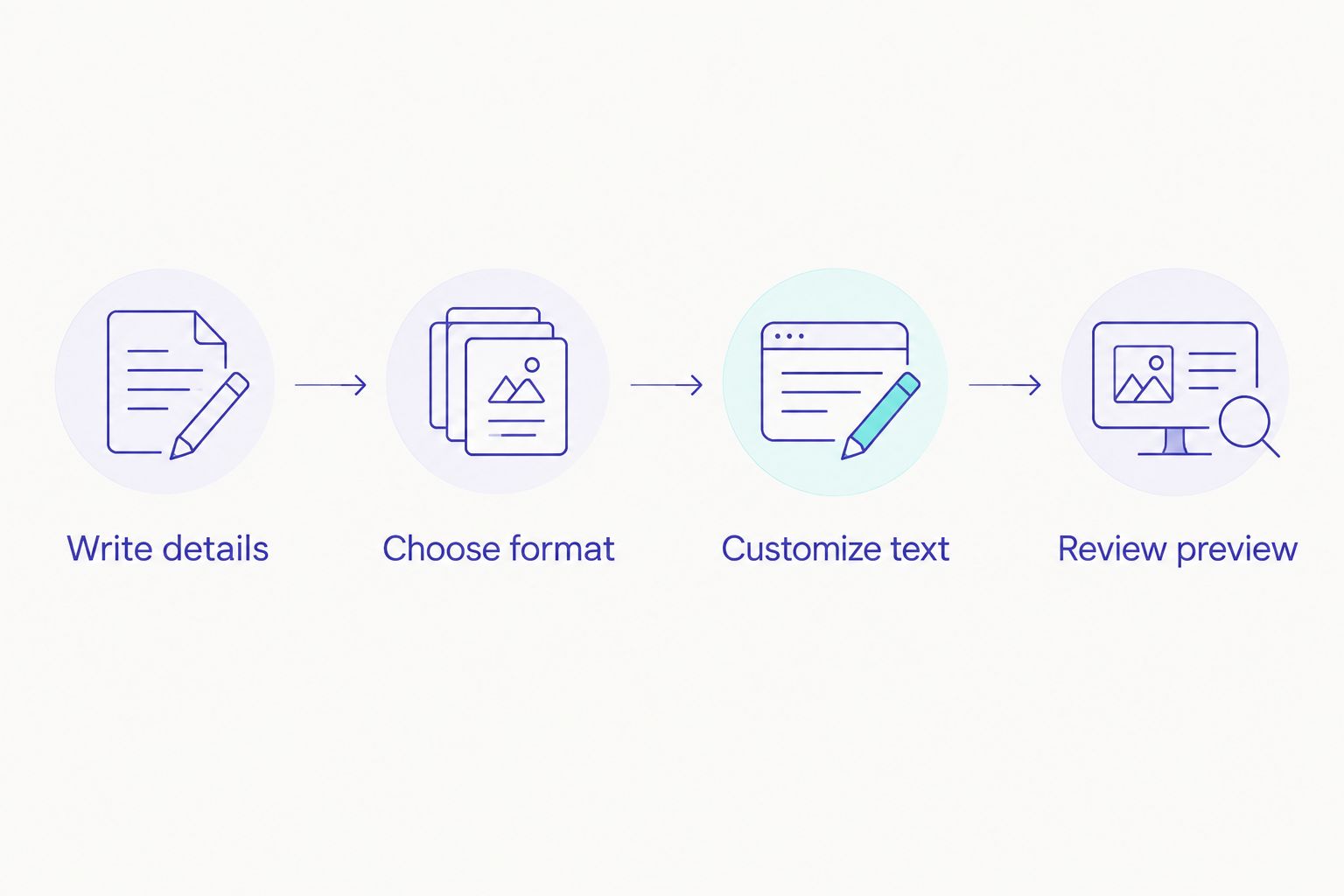
Make your invitation in a clear sequence
Write details
Prepare the host's name, occasion, event date, local time, full venue and contact details before opening the editor. For your 2026 celebration, confirm the family's actual programme rather than copying a generic festival date into the invitation.
Use 1 RSVP contact as a simple default. Several contacts can leave guests unsure whom to message. If different people handle different questions, label their roles clearly.
Choose format
Decide whether you want an animated template, a designed layout, a photo-led video or an edited recording. Then choose the tool. Reversing this order often creates extra work because you start adapting your message to an unsuitable design.
Separate a home puja invitation from a greeting. A greeting can focus on wishes; an invitation must tell the viewer what to do and where to go.
Customize text
Put the most important details in their own readable scene. Keep the welcome short and the address complete. If the template makes you shrink essential text to fit, change the wording or choose a different layout.
For bilingual invitations, check both versions separately. Do not assume that a line break suitable for English will suit another script. Ask someone comfortable with the language to review the finished wording.
Review preview
Watch the complete invitation, then check each information panel on a phone. Make 2 review passes: one for factual accuracy and one for readability. These are recommended checks, not a claim about how long editing takes.
For accuracy, compare the video with your written event details. For readability, watch without pausing. If you cannot finish an important line before the scene changes, shorten the line or adjust the scene where the tool permits it.
Check the message before sharing
A final review should cover more than spelling. Read the invitation as a guest who knows nothing about the event. Can that person identify the host, occasion, venue and expected arrival time without asking you?
Check music separately from the text. Use audio you have permission to share, and keep it from competing with a spoken invitation. A festive mood does not require a crowded soundtrack.
Send the finished file to yourself before distributing it. Open that version and inspect it, rather than relying only on the editor's preview. Keep a short written message alongside the video so guests can find the address and RSVP contact without replaying it.
Which invitation maker should you choose?
Start with Selfanimate when you want a template-based Ganesh Chaturthi invitation video maker without editing skills. Choose Canva when layout design is your priority, Adobe Express when personal photos lead the message, and CapCut when recorded footage needs detailed editing.
For your 2026 invitation, make the decision around your source material. Text alone points towards a template. Photos point towards a visual design workflow. Recorded clips point towards an editor. There is no benefit in taking on editing work your invitation does not need.
Start with an invitation template
Browse the available designs and choose one that fits your event details.
FAQ
What's the best Ganesh Chaturthi invitation video maker for beginners?
Selfanimate is a suitable starting point for beginners who want to customize an animated invitation from a template without editing skills. Check that the selected design fits your event details and intended language.
Is Canva better than a template-based invitation maker?
Canva is a better fit when you want to arrange the invitation layout yourself. A template-based maker suits you when you prefer to personalize an existing animated design.
Can I make a Ganesh Chaturthi invitation in Marathi or Hindi?
Check the exact text in your selected editor and its finished preview before sharing. Review spelling, vowel marks and line breaks with someone comfortable reading the language.
What should I put in a Ganesh Chaturthi invitation video?
Include the host's name, occasion, event date, local time, venue and RSVP contact. Add programme details when guests need to distinguish between puja, aarti or another gathering.
Should I use a free watermarked preview?
Use a free watermarked preview where offered to check the invitation before payment. Review the complete wording, scene timing and music, then check the conditions for the finished output.
Which tool should I use for a recorded family invitation?
CapCut suits a recorded invitation that needs timeline editing, clip trimming and timing adjustments. Confirm current access in your location before making it part of your plan.
Do I need to put the year in my invitation?
Include 2026 with the date when it helps make your event details unambiguous. Confirm the complete date and local time against your family's programme before sharing.
One last thing
Keep the address in the accompanying message as well as the video. Your guests should not need to replay an animation to find the venue. Use the video for the personal welcome and the written message for details they need to copy or refer to later.