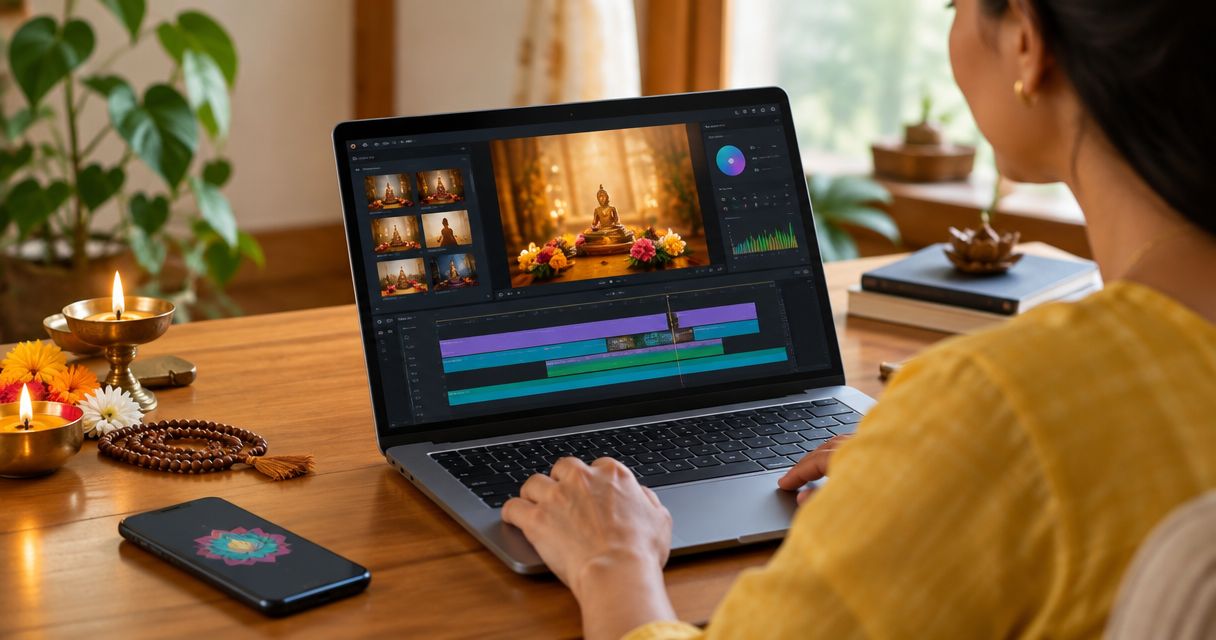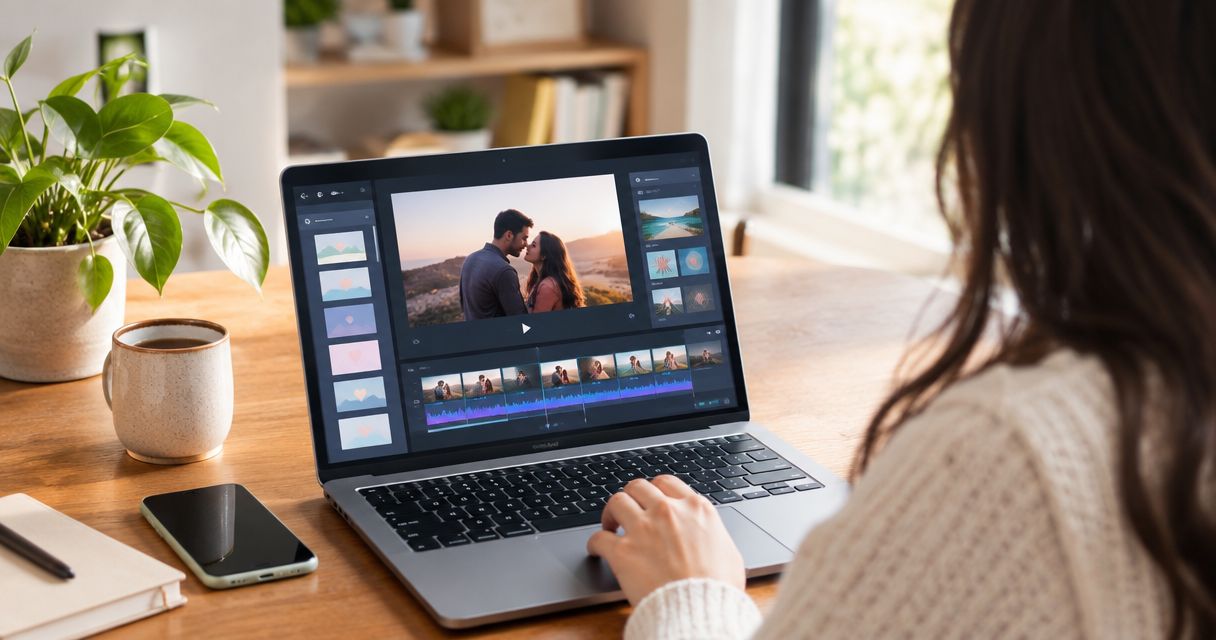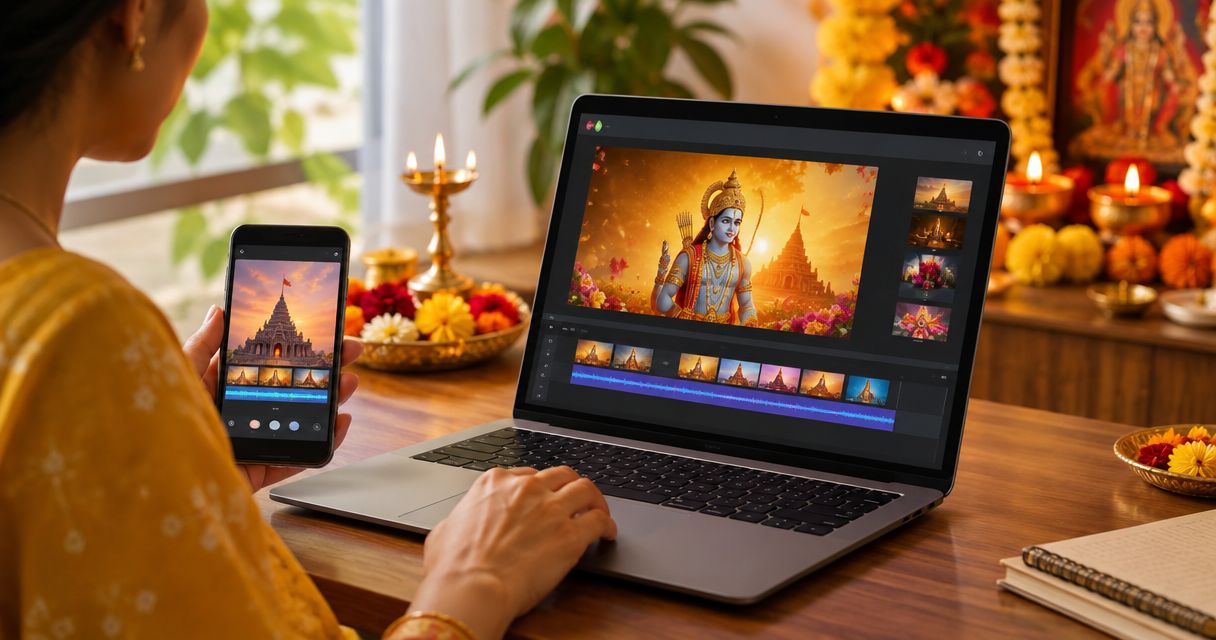
Best for template-led animated invitations: Selfanimate. Best for custom layouts: Canva. Best for mixed photo-and-text videos: Adobe Express. Best for detailed timeline editing: CapCut. Choose your baby naming ceremony invitation video maker in 2026 by how much editing you want to do, not by how many effects it offers.
- Selfanimate is the baby naming ceremony invitation video maker pick for families who prefer customizable animated templates.
- Canva suits custom invitation layouts; Adobe Express suits photo-and-text videos.
- CapCut suits families who want to control clips, music, and timing themselves.
- Check ceremony wording, local-language text, and phone readability before sharing your naming ceremony invitation.
Why this matters
A naming ceremony invitation needs to feel personal and tell your guests where to be. Animation adds warmth, but it cannot fix a missing address or an unclear start time.
For a ceremony in 2026, start with the information your family has agreed to share. Decide whether the video will reveal the baby's name or simply invite guests to the naming ceremony. That choice affects the opening line, photographs, and final message.
You do not need a professional editing workflow for a straightforward invitation. You need a suitable design, readable text, and enough control to correct the details before sending it.
What makes the best naming ceremony video maker?
Use these criteria before choosing a tool:
- Relevant design: The layout should suit a family ceremony, rather than look like a business advertisement.
- Readable details: Guests should be able to read the date, time, and venue on a phone without pausing repeatedly.
- Personalization: Look for the text, photograph, and design controls your invitation actually needs.
- Language handling: Check your exact wording in the chosen font. A font that looks attractive in English is not proof that your regional-language text will display correctly.
- Editing effort: Choose templates for a guided starting point and a timeline editor for detailed control.
- Preview and export clarity: Check the finished video, watermark conditions, and export requirements before committing to a tool.
Choose the simplest editor that can present your ceremony details clearly. Extra controls help only when you intend to use them.
The video makers at a glance
These recommendations separate different jobs. They are not a claim that one editor wins every comparison.
| Video maker | Best for | Standout approach | Key limitation |
|---|---|---|---|
| Selfanimate | Template-led animated invitations | Customizing animated invitation and greeting templates without editing skills | You need to check whether a template accommodates your ceremony wording |
| Canva | Custom invitation layouts | Combining text, photographs, and design elements in a visual editor | You must choose and arrange the elements yourself |
| Adobe Express | Mixed photo-and-text videos | Building a video from photographs, text, and other visual content | A general-purpose editor still needs ceremony-specific wording and styling |
| CapCut | Detailed timeline editing | Adjusting clips, text, audio, and timing | More editing decisions than a template-led invitation requires |
1. Selfanimate: best for template-led animated invitations
Selfanimate is an online video maker based in India for customized animated invitations and greetings. You start from templates rather than building the whole animation yourself. Its stated focus includes family occasions and ceremonies, making that approach relevant to a naming invitation.
Selfanimate is the naming ceremony invitation video maker pick for families who want an animated template without learning video editing. Start by checking the current template selection against your wording, rather than assuming that every ceremony or language has a dedicated design.
Selfanimate pros:
- Its stated offering focuses on animated invitations and greetings.
- Templates give you a starting structure instead of a blank editing project.
- The service is designed for people without editing skills.
Selfanimate cons:
- A template-led approach gives you a starting design to work within, not an unrestricted editing canvas.
- You still need to confirm that the chosen design accommodates your text, photographs, and ceremony details.
Best for: Families who want to customize an animated invitation rather than assemble individual clips.
Verdict: Choose Selfanimate for a template-first workflow; skip this approach if you want to direct every animation yourself.
2. Canva: best for custom invitation layouts
Canva is a visual design tool with video-editing features. You can combine photographs, text, and design elements to build an invitation around your own layout. It suits families who care about the placement of each detail as much as the animation.
Use Canva when you have a clear visual idea: a photograph-led opening, a separate ceremony-details page, and a closing invitation from the family. Keep the layout consistent instead of changing fonts and decoration on every scene.
Canva pros:
- You can arrange text and photographs within your own design.
- Its design tools suit invitations that need coordinated typography and visual elements.
- You can build the invitation around a family photograph rather than an animation theme.
Canva cons:
- A flexible editor leaves more layout decisions to you.
- Decorative elements can crowd the ceremony details unless you simplify the design.
Best for: Families who want to choose the layout and visual style themselves.
Verdict: Choose Canva for layout control; skip it if you would rather personalize an already-structured animated invitation.
3. Adobe Express: best for mixed photo-and-text videos
Adobe Express is a general-purpose content creation tool with video features. You can bring photographs and text into the same project to create a simple invitation story. It fits a brief that starts with family images and ends with a clear ceremony announcement.
The main decision is what to include. A photograph of the baby, an invitation message, and the event details usually give you a clearer structure than a long sequence of loosely related pictures.
Adobe Express pros:
- It supports projects that combine photographs and text.
- Its general design tools give you room to create a personal visual treatment.
- You can organize the invitation around a short sequence of distinct scenes.
Adobe Express cons:
- It is not exclusively a naming ceremony invitation tool.
- You must supply the ceremony wording and choose a suitable visual direction.
Best for: Families creating a short invitation from photographs and written messages.
Verdict: Choose Adobe Express for a photo-and-text story; skip it if you want the ceremony design chosen for you.
4. CapCut: best for detailed timeline editing
CapCut is a video editor with tools for clips, text, audio, and timing. It suits someone in the family who enjoys editing and wants to decide exactly when each photograph, message, or music change appears.
Choose this approach when you already know the sequence you want. For example, you might open with a baby photograph, move to the invitation message, and finish with the venue details. The timeline lets you work on those transitions individually.
CapCut pros:
- You can adjust the order and timing of individual clips.
- Text and audio editing support a more hands-on invitation workflow.
- It suits projects that combine existing footage with photographs.
CapCut cons:
- Detailed control creates more decisions for the person editing.
- Effects and transitions can distract from the invitation if used without restraint.
Best for: Families with an available editor who wants control over the sequence and timing. Check access and current feature support in your country before choosing it.
Verdict: Choose CapCut for hands-on editing; skip it when nobody wants to manage a timeline.
How the recommendations are ranked
This 2026 guide ranks the tools by invitation workflow: template customization, layout design, photo-and-text storytelling, and timeline editing. The criteria are relevance, readability, personalization, language handling, editing effort, and preview clarity—not an invented performance score.
A dedicated template approach gets the first recommendation because it matches the stated task: making an animated family invitation without editing skills. The other options are better fits when you want to take on more of the design or editing yourself.
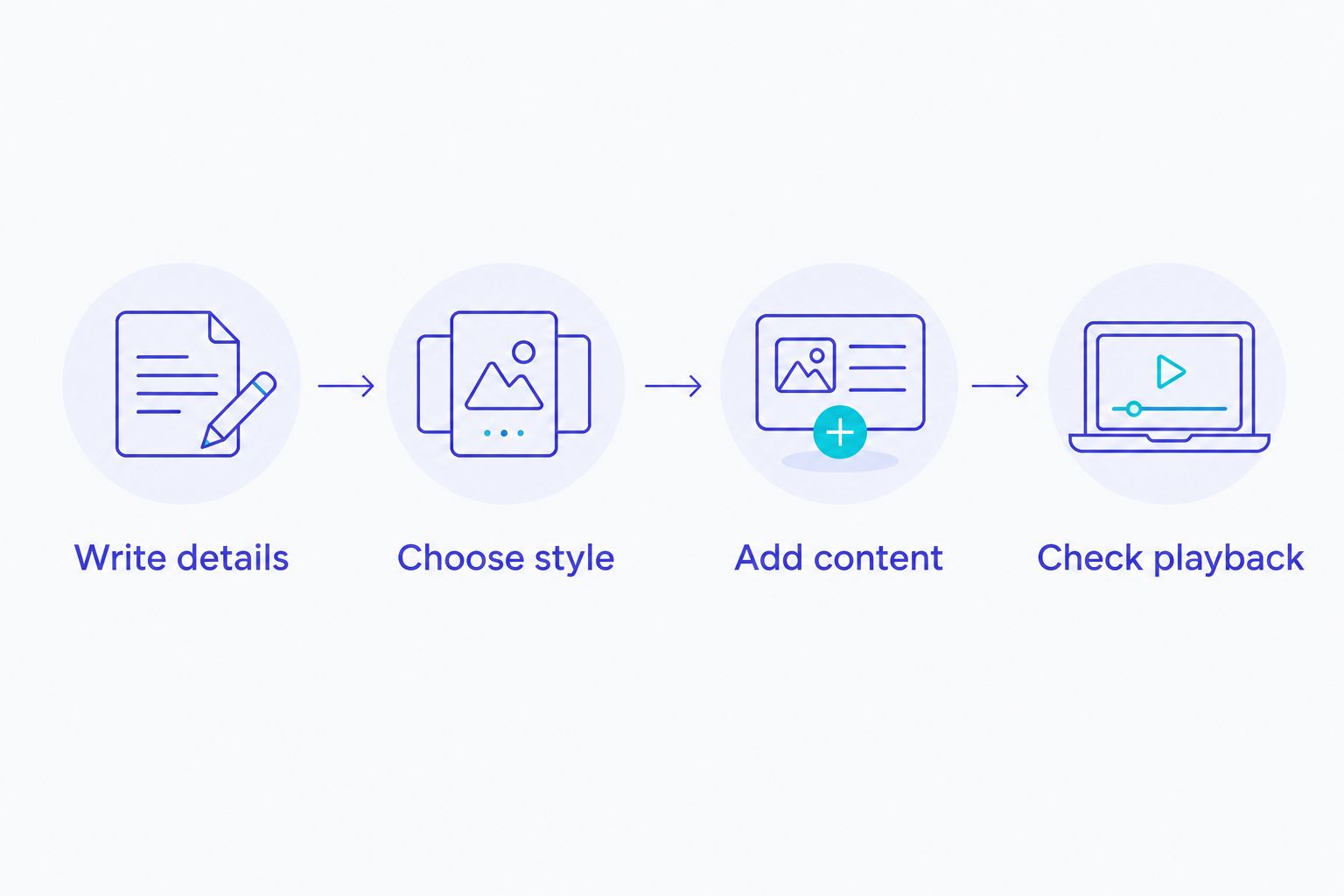
Make your naming ceremony invitation in four steps
Write details
Prepare the invitation text before opening the editor. Keep names and ceremony terminology consistent throughout the video.
Include:
- The hosts' names or a short invitation from the family.
- The ceremony name your family uses.
- The event date, including 2026 where appropriate.
- The start time and venue address.
- An RSVP contact if your family wants one.
For guests abroad, include the city and country rather than relying on a familiar local venue name. For an online gathering, state the time zone clearly. Do not put a meeting password into a video intended for wider sharing.
Choose style
Decide between a traditional, playful, or photograph-led invitation. Then choose a template or layout that supports that direction.
Match the design to your family's ceremony, not the other way around. Avoid adding religious symbols or ritual descriptions just because they appear in a design. Use only the wording and imagery your family wants.
Add content
A practical starting structure is 3 scenes: an opening invitation, the ceremony details, and a closing message. This is a suggested layout, not a rule about video length.
Keep the essential information together. If you use a baby photograph, choose one the parents are comfortable sharing with everyone who will receive the invitation.
Check playback
Ask 2 family members to check the names, ceremony wording, date, time, and venue. Then watch the video on 1 phone without pausing. If the details are difficult to read, simplify the text or adjust the scene timing where the editor allows it.
Check the preview before you commit
A preview helps you inspect the invitation, but preview conditions differ between tools and templates. Check whether you can review the full animation, whether a watermark appears, and what the final export requires. Do not assume that preview access means the finished file has the same conditions.
For your 2026 invitation, inspect the actual project rather than relying on a sample animation. Your names and address can be longer than the sample text. That changes how comfortably the details fit.
Use this final check:
- Read every name aloud against the family's approved spelling.
- Confirm that local-language characters display correctly.
- Check that text does not disappear before you finish reading it.
- Listen to the audio and confirm that the family approves it.
- Review any watermark and export conditions shown by the selected tool.
Once the wording is ready, browse the current template selection and check which design fits it.
Start with your invitation wording
Browse animated invitation templates and choose a design that fits your ceremony details.
Which video maker should you choose?
Choose Selfanimate for a template-led naming ceremony invitation. Choose Canva when the layout matters most, Adobe Express when your invitation is a photo-and-text story, and CapCut when you want to edit the timeline yourself.
For an undecided family planning a ceremony in 2026, start with the least editing-intensive option that fits the approved wording. Move to a general editor only when you need control that the selected template does not provide.
FAQ
What's the best baby naming ceremony invitation video maker?
Selfanimate is the template-led pick for families who want to customize an animated invitation without editing skills. Canva suits custom layouts, Adobe Express suits photo-and-text projects, and CapCut suits detailed timeline editing.
Is Canva better than a dedicated invitation video maker?
Canva is a better fit when you want to arrange the layout yourself. A dedicated invitation template is a better starting point when you want an existing animated structure to personalize.
Can I make a naming ceremony invitation without editing experience?
Yes, a template-led video maker gives you a starting design to customize. Prepare your ceremony wording first and check that the selected template accommodates it.
Can I include Hindi or another Indian language in the invitation?
Check the exact text in your chosen editor and font before committing to the design. Inspect the preview for missing characters, incorrect spacing, and unreadable text; language support must be checked for the specific project.
Should the invitation reveal the baby's name?
Reveal the baby's name only if the parents want to announce it before the ceremony. Otherwise, invite guests to the naming ceremony without including the name.
What should I check before paying for an invitation video?
Check the actual invitation preview, watermark conditions, export requirements, and the current terms shown by the tool. Confirm names, event details, photographs, and audio before completing any payment.
What should a naming ceremony invitation video include?
Include the invitation message, ceremony date, start time, and venue details. Add the hosts' names and an RSVP contact if needed, and state the time zone for an online gathering.
One last thing
Send a short text message containing the date, time, and address alongside the finished video. Guests can copy the details without replaying the animation. Keep the wording identical in both places so nobody receives conflicting information.