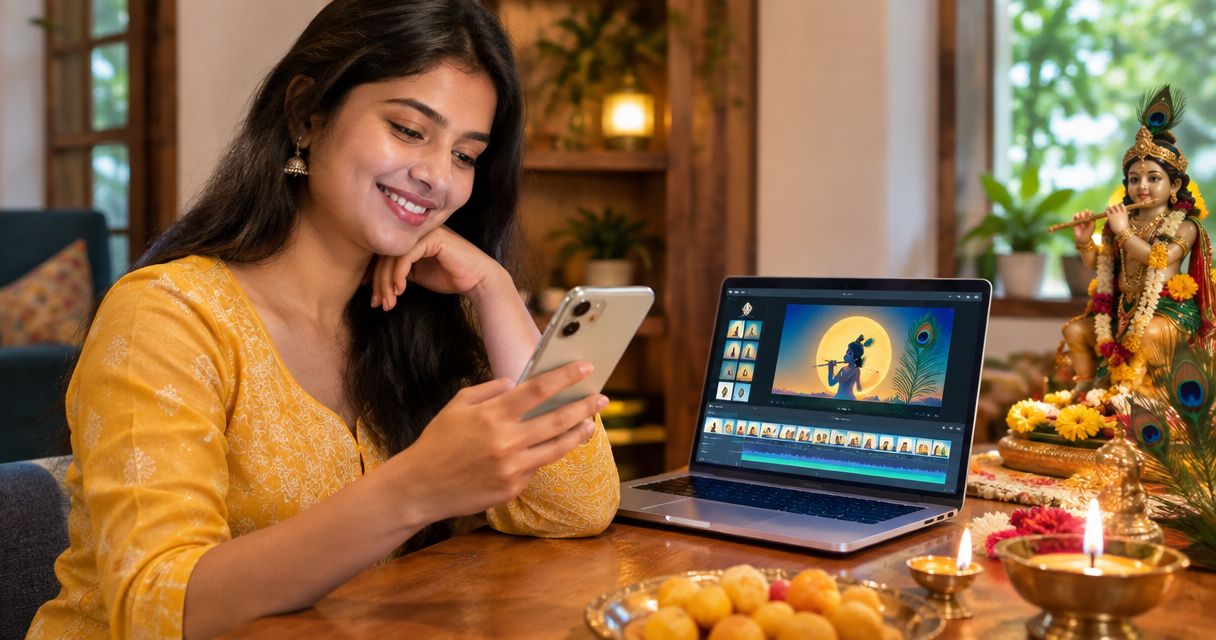
For a Janmashtami wishes video maker, choose Selfanimate for template-based animated greetings without editing skills, Canva for custom layouts, or InShot for family clips. Adobe Express suits readers who want to combine text, images and video in one greeting.
- Selfanimate suits families seeking a template-based Janmashtami wishes video maker; check the chosen template before customizing.
- Canva is the pick for arranging your own greeting text, pictures and decorative elements.
- Adobe Express suits greetings that combine animated text, images and video.
- InShot suits phone-first editing of family clips with text and music.
- Check names, language, cropping, audio rights and watermark terms before sharing your festival greeting.
Why this matters
A Janmashtami greeting has a simple job: carry your wishes clearly. Animation should support the message, not hide it behind moving decorations or text that disappears before your family can read it.
For your 2026 greeting, choose the workflow before the artwork. A ready-made animated template, a custom greeting card and a family-video edit need different tools. Start with the material you already have and the amount of editing you want to do.
Choose a template-based maker when you want to personalize a greeting rather than build an edit from scratch. Choose a general editor when your own photos, clips or layout are the main attraction.
What makes the best Janmashtami wishes video maker?
Use these criteria to choose your tool:
- Starting point: Decide whether you want a ready-made animated greeting, a custom design or an edit built around family footage.
- Readable wishes: Your message should remain easy to read against the background, including on a phone.
- Language handling: Check the actual rendering of Hindi, English or your preferred regional language before finishing.
- Personalization: Identify the changes you need, such as a family name, photograph, message or closing line. Check those controls in the chosen template or editor.
- Sharing format: Match the canvas to where you will share it. Avoid squeezing a wide greeting into a vertical frame at the end.
- Final-file checks: Review watermark terms, music permissions and export settings before committing to the finished video.
A beautiful sample is not enough. Your own words must fit it. Read the text aloud and watch the full sequence before deciding that a design works for your family.
Janmashtami video makers at a glance
| Tool | Best for | Standout feature | Key limitation |
|---|---|---|---|
| Selfanimate | Template-based animated greetings | Customizable invitation and greeting templates without editing skills | The chosen template sets the starting structure; inspect its editable fields |
| Canva | Custom greeting layouts | Design tools for arranging text, images and animated elements | You make more layout decisions yourself |
| Adobe Express | Mixed-media greetings | Tools for combining text, images and video | A simple greeting still needs decisions about sequence and timing |
| InShot | Family clips edited on a phone | Mobile tools for trimming clips and adding text or music | It is a general editor, not a dedicated festival-greeting workflow |
These are different routes to a finished greeting, not interchangeable products. If you only want to change a message and name, do not choose a clip editor just because it offers more controls.
1. Selfanimate: best for template-based animated greetings
Selfanimate is an online video maker based in India for creating and customizing animated invitation and greeting videos from templates. It suits families who want an animated starting point without learning video editing.
Begin with a template whose imagery and wording fit your wishes. Check the available personalization fields before writing a message around them. A festival greeting needs a clear wish and sender name; a celebration invitation also needs practical details.
Selfanimate pros:
- Its stated purpose includes animated greeting videos.
- Templates give you a starting structure instead of a blank canvas.
- The service is designed for people without editing skills.
Selfanimate cons:
- A template-led workflow is not the same as directing every frame yourself.
- The selected design needs to accommodate your message and intended personalization.
- You need to inspect the chosen template rather than assume every design offers the same controls.
Best for: Families who want to personalize a template-based animated greeting.
Before payment, confirm the chosen template's preview and watermark terms. If a watermarked preview is offered, use it to review the wording, spelling and animation rather than treating it as the final shareable file.
Verdict: Choose for a template-led greeting; skip this route when a custom footage edit is your priority.
2. Canva: best for custom greeting layouts
Canva is a design tool that also supports video and animation. It is a useful choice when you want to arrange your own greeting text, pictures and decorative elements rather than follow a dedicated greeting-video sequence.
Start with the canvas shape, then build the message around it. Keep the main wish visually separate from the sender name. If you add a photograph, check that decorations and text do not cover the faces.
Canva pros:
- You can arrange text and images in your own layout.
- Animation tools let you add movement to a designed greeting.
- The design-first workflow suits a greeting built around a photograph or message.
Canva cons:
- You must make your own choices about spacing, contrast and visual hierarchy.
- Adding animation does not automatically make the greeting easier to read.
- An attractive design still needs a full playback check.
Best for: Readers who want control over the greeting's composition.
For a 2026 Janmashtami message, keep the festival wish as the main element. Add decoration only after the wording works. A crowded greeting gives every element equal attention and leaves the reader unsure where to look.
Verdict: Choose for custom layouts; skip if you do not want to make design decisions.
3. Adobe Express: best for mixed-media greetings
Adobe Express supports designs and videos that combine text, images and clips. Choose this route when your greeting needs more than a single animated card, such as an opening wish followed by a photograph and a short family message.
Plan the sequence before decorating it. Give each part a clear purpose: introduce the occasion, show the personal element, then close with the sender's name. Avoid adding another scene just because the editor makes it possible.
Adobe Express pros:
- It supports a greeting built from different media types.
- Text and visual elements can work together in a video project.
- A sequence-based greeting gives separate messages their own space.
Adobe Express cons:
- You need to decide the order and timing of the content.
- Mixed media can create an inconsistent look without deliberate styling.
- More scenes mean more wording and transitions to review.
Best for: A greeting that combines a wish, photographs and video.
Use a consistent text style across the sequence. The greeting should feel like one message, not separate designs joined together. Check that the closing name remains readable after the busier parts.
Verdict: Choose for mixed media; skip when a single template greeting is enough.
4. InShot: best for family clips edited on a phone
InShot is a mobile video editor with tools for trimming footage and adding text or music. It fits a Janmashtami greeting built around recordings you already have, such as a family message or footage of your celebration.
Select the clips that carry the greeting before opening the editor. Remove distracting starts and endings, then add only the text viewers need. The family footage should remain the focus.
InShot pros:
- Its mobile workflow suits footage recorded on your phone.
- Trimming helps remove unnecessary parts of clips.
- Text and audio tools let you turn footage into a greeting.
InShot cons:
- You assemble the greeting rather than follow a dedicated festival template.
- Footage quality affects the result, especially when faces or speech are unclear.
- Extra effects can distract from the personal message.
Best for: Families who want their own recordings to lead the greeting.
Check privacy before sharing clips of children or other relatives. Keep the distribution appropriate to the people shown, and ask permission before posting personal footage publicly.
Verdict: Choose for family footage; skip when you want a ready-made animated greeting.
How to choose between these tools
The recommendations follow the criteria above: starting point, personalization, readability and sharing format. The right choice is the one that matches the work you want to do, not the one with the longest feature list.
For 2026, use this decision rule:
- Choose templates when you want to personalize an existing animated greeting.
- Choose layouts when the placement of text and pictures matters most.
- Choose mixed media when different scenes need different content.
- Choose family clips when your own recordings carry the message.
Before starting, write down the changes you need. If your chosen route cannot handle an essential change comfortably, switch tools before building the whole greeting.
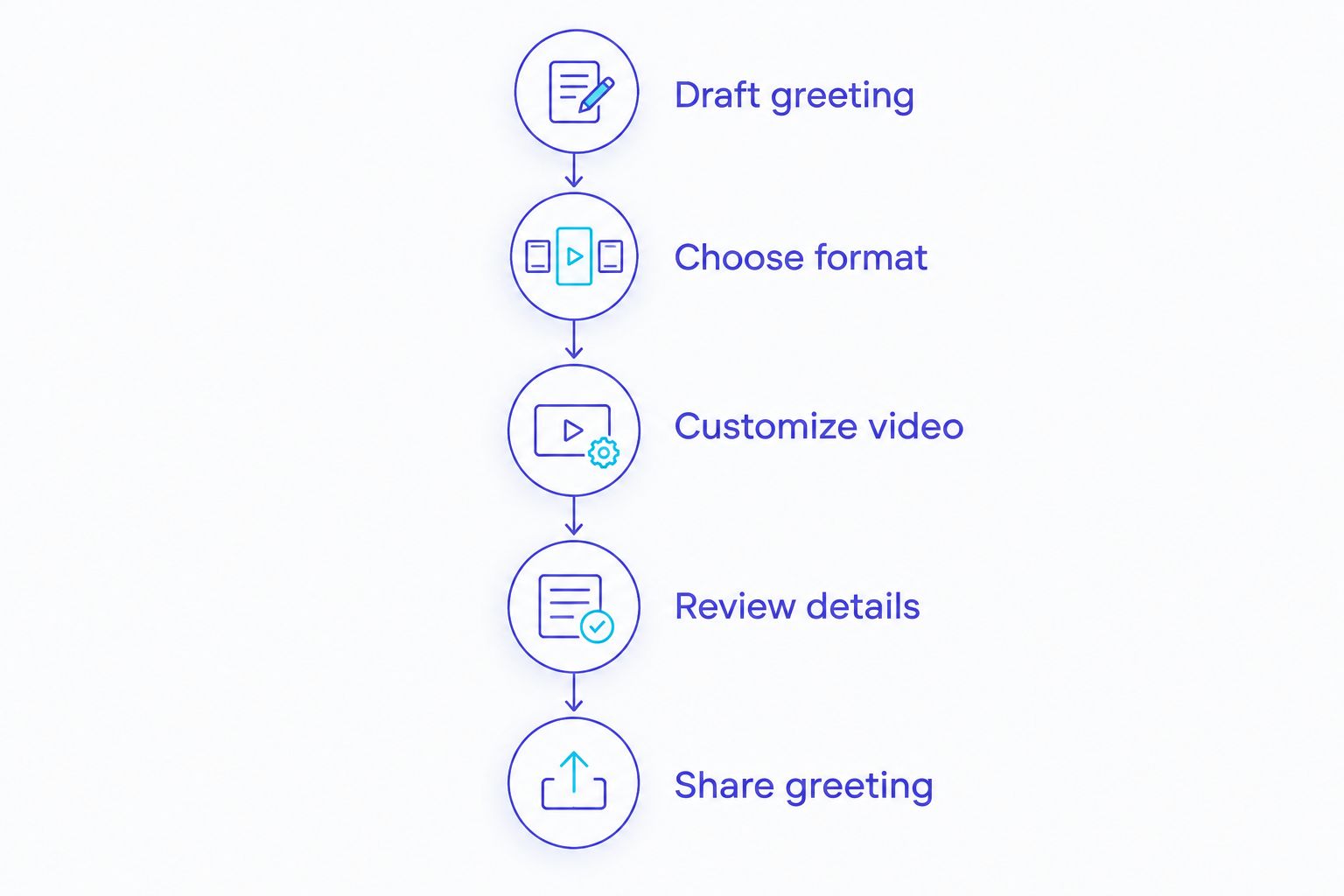
Make your Janmashtami wishes video
Draft greeting
Write the message before browsing designs. Keep the main wish separate from the sender name so each has room to breathe.
A simple starting point is: Wishing you and your family a joyful Janmashtami. Follow it with your family name or a personal closing. For a 2026 celebration invitation, add the confirmed event details instead of relying on a greeting to explain them.
Choose format
Match the shape to its destination. A 9:16 aspect ratio is vertical; 1:1 is square; 16:9 is landscape. These are canvas proportions, not promises about any tool's exports.
Common example dimensions are 1080 × 1920 pixels for a vertical canvas and 1080 × 1080 pixels for a square canvas. Check the editor's available settings, then preview the composition at phone size. Faces and names should not sit against the edges.
Customize video
Add your wording and personal elements. Check each field before moving on, especially family names and regional-language text.
Keep the message hierarchy simple. The festival wish comes first, the personal detail comes next, and the sender name closes the greeting. Use decoration to frame those elements rather than compete with them.
Review details
Watch the entire video with sound, then without sound. Confirm that the greeting still makes sense when someone views it silently.
Check spelling, text duration, cropping and the final frame. Confirm permission to use the selected audio, and review the applicable watermark and export terms before finishing.
Share greeting
Send the finished greeting to yourself first. Open it in the place you plan to share it and inspect the text, sound and framing.
Keep a short text version of the wish alongside the video. It makes your greeting accessible to relatives who prefer reading and keeps essential invitation details easy to find.
Which video maker should you choose?
Choose the template route by default if your goal is an animated wish without editing skills. Choose Canva for layout control, Adobe Express for mixed media, or InShot when family footage is the centre of the greeting.
For your 2026 video, start with the simplest workflow that covers your essential changes. Browse the relevant templates, inspect the personalization options, and decide whether the design fits your message before committing to it.
Start with a greeting template
Browse the templates and check the personalization options for your festival message.
FAQ
What's the best Janmashtami wishes video maker for beginners?
Selfanimate suits beginners who want template-based animated greetings without editing skills. Check the chosen template's editable fields and suitability for your Janmashtami message before customizing.
Is Canva better than a template-based greeting maker?
Canva is the better fit when you want to arrange your own text, pictures and decorative elements. A dedicated template-based greeting maker fits a reader who wants an existing animated structure to personalize.
Which tool should I use for a Janmashtami video with family clips?
InShot suits a phone-based greeting built from family clips. Trim the footage, add a clear wish and review the sound before sharing.
Can I make Janmashtami wishes in Hindi or a regional language?
Choose a template or editor that correctly renders your intended language. Review the actual text for spelling, character shapes and line breaks before finishing the video.
What size should I choose for a vertical greeting video?
Choose a 9:16 canvas for a vertical greeting. A common example is 1080 × 1920 pixels, but check the export settings available in your chosen tool.
Should I check a watermarked preview before payment?
Yes, review a watermarked preview before payment when the chosen template offers one. Check the wording and animation, then confirm the terms for the finished file.
Can I use any devotional song in my Janmashtami greeting?
Use audio only when you have permission for the intended use. A devotional theme does not remove copyright obligations, so check the track's licence and sharing conditions.
Should I include the festival date in my 2026 wishes video?
Include a date when your video invites people to a specific event. Confirm the details with the organiser; a general festival wish does not need an event date.
One last thing
A greeting and an invitation need different information. A beautiful Janmashtami wish can end with your family name; an invitation must also tell people where to go and when.
Put confirmed invitation details in the accompanying text as well as the video. Your relatives should not have to replay an animation to find the venue or arrival time.