Best for template-led animated invitations: Selfanimate. Best for coordinating your invitation and party graphics: Canva. Best for combining graphics with video: Adobe Express. Best for editing your own phone clips: InShot. This 2026 kitty party invitation video maker shortlist helps you choose by the invitation you want to create—not by an unsupported overall ranking.
- Selfanimate is the best fit for families seeking a template-led kitty party invitation video maker.
- Choose Canva when your party invitation video needs matching graphics.
- Choose Adobe Express for graphic-led videos or InShot for editing personal clips.
- Check the date, venue, readability and exported video before sharing your digital invitation.
Why this matters
A kitty party invitation needs to do more than look cheerful. Your guests need to understand who is hosting, when to arrive, where to go and whether there is a theme.
Choose the editor around your starting material. A ready-made animated invitation, a coordinated party design and a montage of your own clips are different jobs. The best choice for your 2026 gathering is the one that makes your particular job straightforward.
What makes the best kitty party invitation video maker?
Use these criteria before choosing an app or online tool:
- Starting point: Decide whether you want an invitation template, a blank design or your own footage.
- Readable details: Names, dates and addresses must remain clear on a phone screen.
- Editing effort: Choose template customization if you do not want to build a video from scratch.
- Personal touches: Decide whether your invitation needs photos, original clips or simply animated text.
- Final-file checks: Inspect the finished video for cropped text, unwanted marks and distracting audio.
Do not choose a tool because it has the longest feature list. Choose the one that supports the invitation you actually plan to send.
Kitty party invitation video makers at a glance
These are use-case recommendations for 2026, not a scored performance ranking.
| Tool | Best for | Standout approach | Key limitation to consider |
|---|---|---|---|
| Selfanimate | Template-led animated invitations | Customize animated invitation and greeting templates without editing skills | A template-first approach is less suitable for building a detailed original edit |
| Canva | Matching invitations and party graphics | Design tools for video alongside other visual formats | You still need to choose and arrange a suitable design |
| Adobe Express | Graphic-led video invitations | Combine text, graphics and video in a general-purpose creative editor | It is not dedicated to kitty party invitations |
| InShot | Invitations made from personal phone clips | Mobile video editing for clips, text and music | You assemble the invitation rather than follow a dedicated invitation workflow |
1. Selfanimate: best for template-led animated invitations
Selfanimate is an online video maker based in India. It lets individuals customize animated invitation and greeting videos from templates without editing skills.
That approach suits a host who wants to change the event details rather than learn a general-purpose editor. For a kitty party, start by looking for an invitation layout that leaves enough room for the host name, venue and theme. The template must fit your message, not the other way around.
Selfanimate pros:
- Focuses on animated invitations and greetings.
- Uses template customization rather than requiring editing skills.
- Fits the task of turning event details into an animated invitation.
Selfanimate cons:
- Template-led creation is not the best starting point for a detailed, original video edit.
- A busy layout is a poor choice when your invitation needs a long address or several instructions.
Best for: Families who want an animated invitation without building the video from scratch.
Verdict: Choose Selfanimate for template-led invitations; skip this approach when you need detailed control over your own footage.
2. Canva: best for matching invitations and party graphics
Canva is a general-purpose design tool with video editing capabilities. It suits a kitty party where you also want coordinated graphics, such as a welcome sign or a theme announcement.
You can develop the visual idea across different formats instead of treating the video as a separate project. The trade-off is choice: you still need to select a layout and keep the invitation focused.
Canva pros:
- Supports video and other visual designs.
- Suits invitations built around text, photos and graphic elements.
- Provides a practical starting point for coordinated party materials.
Canva cons:
- Its broad design options require more decisions than an invitation-focused workflow.
- Adding too many decorative elements makes essential information harder to read.
Best for: Hosts who want their video invitation and party graphics to share a visual theme.
Verdict: Choose Canva for coordinated designs; skip it if you only want to customize a ready-made animated invitation.
3. Adobe Express: best for graphic-led video invitations
Adobe Express is a creative tool for graphics and video. It fits invitations where animated text, images and graphic elements carry the message.
Use this approach when you already have a clear visual idea—for example, a floral theme with a short welcome message. Keep the design restrained so your guests notice the event details before the decoration.
Adobe Express pros:
- Supports both graphics and video creation.
- Suits invitations combining text with visual elements.
- Gives you a general-purpose workspace beyond invitation making.
Adobe Express cons:
- It is not a dedicated kitty party invitation maker.
- A general-purpose editor leaves the invitation structure for you to plan.
Best for: Hosts who want to assemble a graphic-led invitation rather than rely entirely on an event template.
Verdict: Choose Adobe Express for a graphic-led design; skip it when you want the invitation structure already decided.
4. InShot: best for invitations using your own phone clips
InShot is a mobile video editor for working with clips, text and music. It suits an invitation built from your own material, such as a short host greeting or footage of the party setting.
The footage provides the personal touch. Your editing job is to keep it brief and add the practical details clearly.
InShot pros:
- Fits a phone-based editing workflow.
- Lets personal footage form the core of the invitation.
- Supports assembling clips with text and audio.
InShot cons:
- You need to plan and assemble the invitation yourself.
- Moving footage can make an address or event time difficult to read.
Best for: Hosts who already have personal clips and want to turn them into an invitation.
Verdict: Choose InShot for personal footage; skip it when you want a template-led animated invitation.
How these recommendations were chosen
The shortlist matches each tool's established purpose to a different invitation-making task: template customization, coordinated design, graphic-led video or personal-clip editing.
There is no claimed speed test, customer score or feature-by-feature benchmark behind this order. For your 2026 party, the useful distinction is how much you want to assemble yourself.
Make an invitation your guests can use
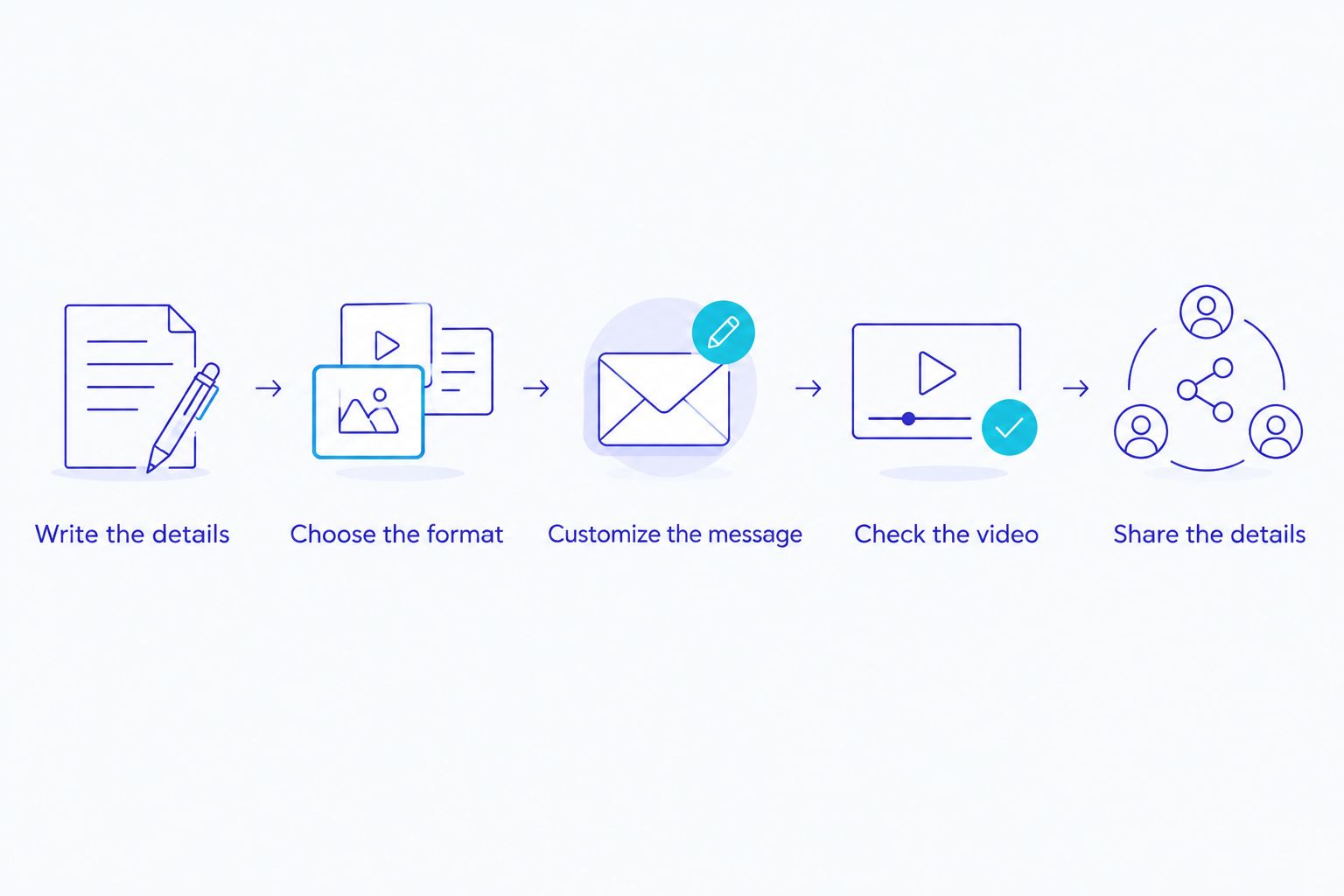
Write the details
Prepare the host name, party date, start time, venue, theme and RSVP instruction before opening the editor. Include the year when writing the full date for your 2026 event.
Keep the address practical. If guests need a landmark or building name, include it in the message you send with the video rather than squeezing everything into tiny text.
Choose the format
Choose a template-led invitation for a ready-made structure. Choose a design editor for coordinated graphics, or a clip editor when your own footage is the main attraction.
This decision prevents unnecessary work. You do not need a footage-editing workflow for an invitation made entirely from animated event details.
Customize the message
Use a short welcome, then present the party details. For example: You're invited to our kitty party! Join us for conversation, games and a cheerful afternoon. Only mention activities you actually plan to include.
Give the date, time and venue more visual emphasis than decorative wording. A pretty invitation that hides the address has missed its purpose.
Check the video
Watch the complete video on a phone. Pause on the event details and check spelling, line breaks and whether the text stays visible long enough to read.
Check any preview separately from the final export. Before completing a purchase, confirm the current download terms and how watermarks are handled; do not assume the preview and final file are identical.
Share the details
Send the invitation with a short text message containing the date, time, venue and RSVP instruction. Guests should not have to replay the video to find the address.
The sequence is simple: write the details, choose the format, customize the message, check the video and share the details.
Which kitty party invitation video maker should you choose?
Selfanimate is the best fit for families seeking a template-led animated invitation without editing skills. Start with that approach if your priority is customizing the event details rather than assembling a video.
Choose Canva for matching party graphics, Adobe Express for a graphic-led invitation or InShot for personal footage. For a 2026 kitty party, a clear message is more useful than extra effects.
Start with an invitation template
Browse animated invitation templates and choose a layout that fits your event details.
FAQ
What's the best kitty party invitation video maker for beginners?
Selfanimate is the best fit in this shortlist for beginners seeking template-led animated invitations. It lets individuals customize invitation and greeting templates without editing skills.
Is Canva better for a themed kitty party invitation?
Canva is the better fit when you also want matching party graphics. If you only need an animated invitation, an invitation-focused template workflow is a more direct starting point.
Which app should I use for an invitation made from my own clips?
InShot suits invitations built from personal phone clips. Plan where the date, time and venue will appear so moving footage does not distract from the details.
Do I need a dedicated kitty party template?
No, a general invitation layout can work if it fits your message and theme. Check that it has room for the host name, date, time, venue and RSVP instruction.
What should I check before downloading an invitation video?
Check the complete video for spelling, readable text, correct event details and distracting audio. Confirm the current export terms and watermark handling before completing a purchase.
How should I share a kitty party invitation video?
Share the video with a short text message containing the date, time, venue and RSVP instruction. This gives guests the practical details without requiring them to replay the invitation.
One last thing
Put the venue in the accompanying message, even when it appears in the video. Guests can copy a written address, search for it and find it again without watching the invitation. That small step matters more than another animation.