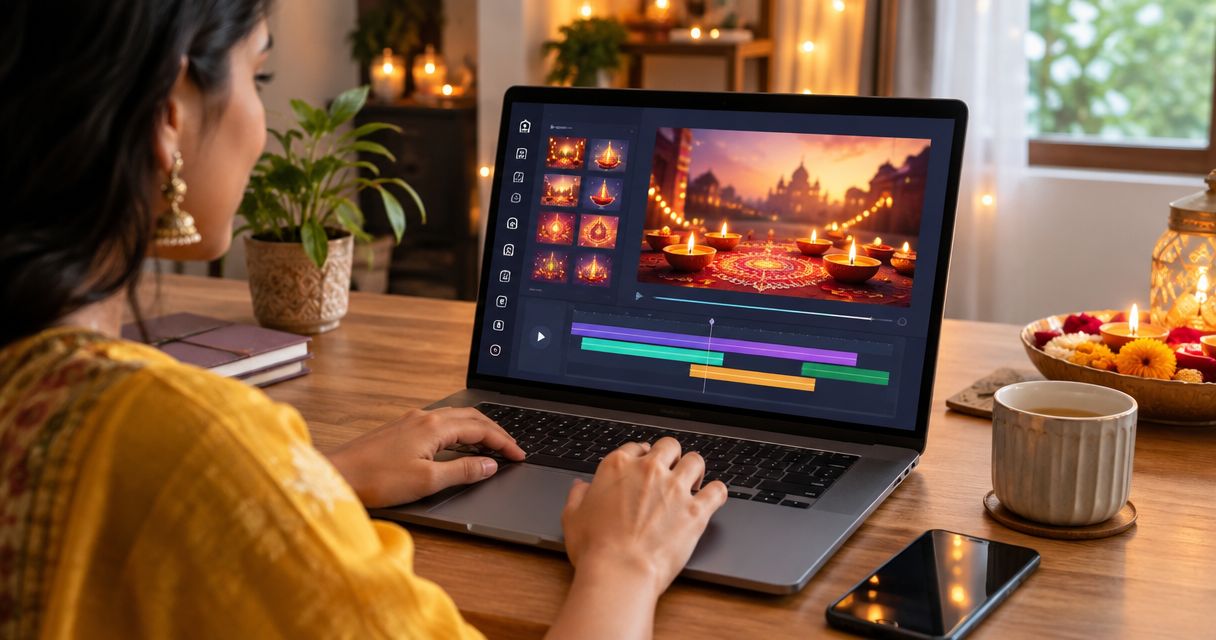
Best for template-led animated invitations: Selfanimate. Best for flexible visual design: Canva. Best for a photo-and-speech invitation: CapCut. Best for slide-based invitations: PowerPoint. Choose your retirement party invitation video maker in 2026 by the invitation you want to send, not by the longest feature list.
- Selfanimate is best for families seeking a template-led animated invitation without editing skills.
- Choose Canva as your retirement party invitation video maker when layout flexibility matters most.
- Choose CapCut for a retirement invitation built around photos, recorded messages, and video clips.
- Choose PowerPoint when you prefer arranging the invitation as slides before exporting a video.
Why this matters
A retirement invitation has two jobs: celebrate the person and explain the party. A moving tribute that hides the venue is not a useful invitation. Neither is a beautiful design with the wrong date.
For a 2026 celebration, decide whether you need a simple animated invite, a photo-led family message, or a formal office farewell. That choice determines which editor fits. Indian families sharing an invitation with relatives abroad should also make the location and local event time explicit.
Selfanimate is best for families who want a template-led animated invitation without learning video editing. For a retirement celebration, choose a template only if its wording and visual style suit the occasion.
What makes the best retirement invitation video maker?
Use these criteria before choosing an editor:
- Invitation-first workflow: You should be able to make the name, date, time, venue, and RSVP instructions clear without building an entire film.
- Creative control: Decide whether you want to customize an existing design or arrange each scene yourself.
- Personal touches: Photos and recorded messages matter when the invitation also introduces the retiree's story.
- Readable text: The event details must remain legible when you watch the exported video on your phone.
- Review before sharing: Check the actual output, including text, sound, and any watermark, rather than judging only the editing screen.
- Manageable effort: Pick a workflow you understand. Extra editing controls help only when you need them.
Retirement invitation video makers at a glance
These 2026 recommendations separate the tools by use case. There is no single winner for every invitation style.
| Maker | Best for | Standout approach | Key limitation |
|---|---|---|---|
| Selfanimate | Template-led animated invitations | Customize an invitation or greeting template without editing skills | A template-led approach is not the same as unrestricted scene editing |
| Canva | Flexible invitation layouts | Arrange text, graphics, photos, and video in a visual editor | You must make more design decisions yourself |
| CapCut | Photo-and-speech invitations | Edit video clips, audio, captions, and transitions | Timeline editing adds work to a simple text invitation |
| PowerPoint | Slide-based office farewells | Build slides with text, pictures, and animation, then export a video in supported desktop versions | Slide-based motion needs care to avoid a presentation-like result |
1. Selfanimate: best for template-led animated invitations
Selfanimate is an online video maker based in India for creating customized animated invitation and greeting videos from templates. Its workflow is aimed at individuals without editing skills. That makes it a relevant starting point when your priority is a clear invitation rather than a fully edited retirement film.
Start with the occasion and tone. A cheerful family gathering and a formal office farewell need different wording, even when both celebrate retirement. Choose a design that accommodates your message; do not squeeze essential details into a template simply because you like its animation.
Selfanimate pros:
- Invitation and greeting videos are its stated focus.
- The template-led workflow suits people without editing skills.
- You can start with an existing animated design instead of planning every scene.
Selfanimate cons:
- A template-led workflow gives you a starting structure, not unlimited scene control.
- You still need to check whether the chosen design suits retirement wording.
- A family documentary with many clips calls for a different editing approach.
Best for: Families who want an animated invitation and prefer customizing a template to editing a timeline.
If a free watermarked preview is offered for your chosen template, use it to check spelling, timing, and the event details. Judge the complete preview, not just the opening scene. Confirm the current preview and export conditions before completing your order.
Verdict: Choose the template-led route for a straightforward animated invitation. Skip it when your main goal is a multi-clip tribute.
2. Canva: best for flexible invitation layouts
Canva combines visual design tools with video editing. You can arrange text, images, graphics, and video to create an invitation with a more personally chosen layout. It fits a family that wants to decide where the portrait, headline, and party details appear.
The trade-off is decision-making. You choose the arrangement, then check whether it stays readable as the video plays. A design that works as a still image does not automatically work when text appears and disappears.
Canva pros:
- Useful when text layout and visual styling are central to the invitation.
- Supports combining photographs with invitation wording.
- Suits an invitation assembled from separately designed scenes.
Canva cons:
- More layout freedom means more design choices.
- You must review scene timing as well as appearance.
- An attractive design still needs editing to keep event details prominent.
Best for: Families who want a photo-led invitation with control over the visual arrangement.
Keep the main portrait separate from the detailed event information if the combination becomes crowded. Use consistent text styling throughout. Too many decorative elements compete with the retiree's name and the invitation itself.
Verdict: Choose Canva for layout flexibility. Skip it if you want fewer design decisions and a more prescribed invitation workflow.
3. CapCut: best for photo-and-speech retirement invitations
CapCut is a video editor for arranging clips, sound, captions, and transitions. It fits an invitation built around a recorded message, family photographs, or footage of the person retiring. Here, the invitation behaves more like a short edited video than an animated card.
Start with the message you want guests to hear. Then add the visual material that supports it. If the invitation contains a spoken welcome, make the party details visible as text too; guests should not need to replay the audio to find the venue.
CapCut pros:
- Timeline editing suits a sequence of photographs and clips.
- Audio editing helps when speech is central to the invitation.
- Captions can support a spoken message.
CapCut cons:
- Clip arrangement and timing require editing decisions.
- A simple invitation can become an unnecessarily long tribute.
- You must balance music and speech so the message remains understandable.
Best for: Families creating a personal invitation around voices, memories, and recorded footage.
Select the material before opening the editor. A clear portrait, a relevant memory, and a direct invitation are easier to organize than a folder of unrelated images. Save the extended career montage for the party itself.
Verdict: Choose CapCut when footage and speech carry the invitation. Skip it for a text-first invite that does not need timeline editing.
4. PowerPoint: best for slide-based office farewell invitations
PowerPoint lets you arrange text and pictures on slides and add animation. Supported desktop versions can export a presentation as a video. It is a practical option when you already understand slide layouts and want a formal invitation for colleagues.
Treat each slide as a video scene rather than a presentation page. Replace paragraphs with short lines, and preview the exported result. Reading a slide at your own pace is different from watching it advance automatically.
PowerPoint pros:
- Slide layouts make it straightforward to separate invitation information.
- Familiar text and picture tools suit a formal office message.
- Animation can add movement without assembling a footage-led timeline.
PowerPoint cons:
- Video export depends on the version you use.
- Dense slides are difficult to read during playback.
- Presentation-style transitions can distract from a personal celebration.
Best for: Office organizers who already use PowerPoint and want a restrained, slide-based invitation.
Put the retiree's name and the celebration first. Keep company history and career achievements out of the event-details scene. You can acknowledge the person's contribution without turning the invitation into a meeting deck.
Verdict: Choose PowerPoint if slides are your familiar working format. Skip it if you want a ready-made animated invitation experience.
How these recommendations are ranked
The ranking prioritizes invitation fit, creative control, readability, personal media, and editing effort. Selfanimate leads for the template-led use case described here; Canva, CapCut, and PowerPoint serve different creation styles.
This is a workflow comparison, not a claim that one editor wins every task. For your 2026 retirement party, the best tool is the one that produces the right invitation without making you manage features you do not need.
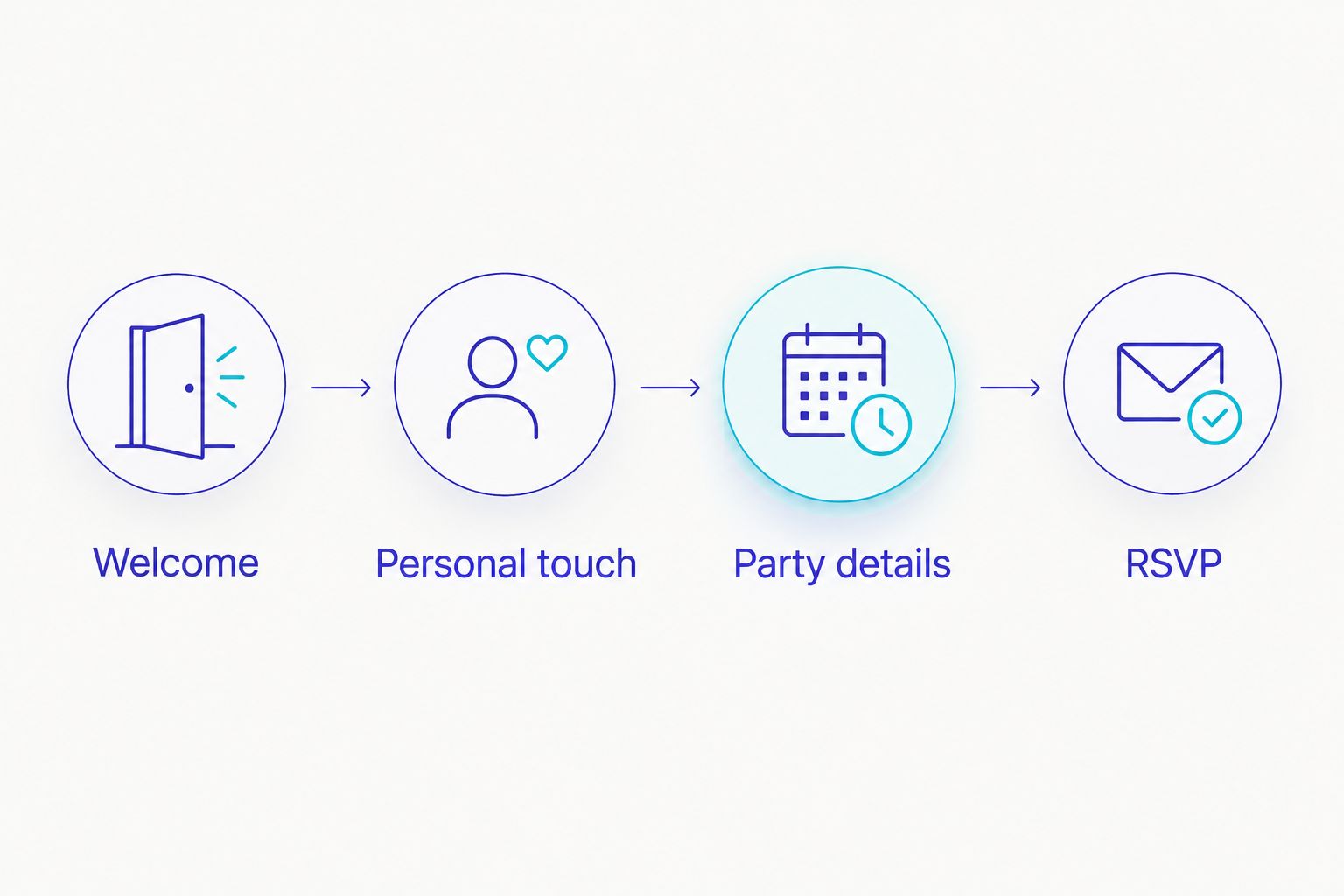
Make the invitation in four clear scenes
Use this suggested structure to keep the invitation separate from the full retirement tribute. Four scenes are a planning choice, not a technical limit. Add another only when the information genuinely needs it.
Welcome
Open with the retiree's name and a direct invitation to celebrate. Choose wording that suits the hosts: a family gathering can sound warm and informal, while an office farewell can be more restrained. Avoid suggesting the invitation comes from the employer unless it does.
Personal touch
Include a portrait, a short message, or a relevant memory. Keep this scene focused on the person rather than their entire career. If you use a colleague's recorded message or a family photograph, get permission before distributing it.
Party details
State the date, start time, venue, and any practical attendance instructions. Write the year as 2026 when that is the event year. For relatives abroad, identify the event's local time zone rather than expecting them to infer it.
RSVP
Finish with a clear response instruction and the contact details you intend to share. Keep the final scene useful when paused. A guest should be able to read it without searching through earlier scenes.
Check the video before you send it
Watch the exported video from beginning to end on the phone you use for messaging. Do not rely only on the editor preview. Read each line at normal playback speed, then check the final scene while paused.
Make two review passes: one for the invitation details and one for playback. In the first, check names, the date, venue, and response instructions. In the second, check text readability, scene changes, speech, and music.
Send the draft to one trusted relative or colleague before distributing it widely. Ask them to repeat the date, location, and response instruction back to you. That is a more useful check than asking whether the video looks nice.
Start with an invitation template
Browse animated invitation designs and choose a style that fits your retirement celebration.
Which retirement party invitation video maker should you choose?
Choose Selfanimate for a template-led animated invitation, Canva for layout control, CapCut for recorded memories, or PowerPoint for a slide-based office farewell. Match the workflow to the material you already have.
If you are undecided, write the invitation text first. A name, welcome, event details, and RSVP instruction point toward a simple invitation workflow. A collection of speeches and clips points toward a video editor. This decision matters more than adding another effect.
FAQ
What's the best retirement party invitation video maker for beginners?
Selfanimate is best for beginners who want a template-led animated invitation without editing skills. Choose a design that suits the retirement occasion and check the complete invitation before sharing.
Is Canva better than CapCut for a retirement invitation?
Canva is the better fit for arranging invitation text and visual layouts; CapCut is the better fit for editing clips and recorded messages. Choose according to whether design or footage carries your invitation.
Can I make a retirement invitation video in PowerPoint?
Yes, supported desktop versions of PowerPoint can export presentations as video. Build readable slides, set their timing, and review the exported file rather than only the presentation.
What should a retirement party invitation video include?
Include the retiree's name, an invitation to celebrate, the date, start time, venue, and RSVP instructions. Add a portrait or short personal message without hiding the practical details.
Should I check a watermarked preview before ordering?
Yes, review a free watermarked preview when the chosen template offers one. Check every scene for correct wording, readable details, and suitable timing, and confirm the current export conditions.
How do I word a 2026 retirement invitation for relatives abroad?
State the complete event date, venue location, and local time zone in your 2026 invitation. Make clear whether guests are invited in person or to an online gathering, and include the appropriate attendance instructions.
One last thing
Keep a plain-text copy of the party details beside the video when you share it. Guests can copy the address or response contact without replaying the invitation. Let the video celebrate the person; let the accompanying message make attendance easy.