Choose Selfanimate for template-led animated birthday invitations, Canva for custom layouts, Adobe Express for photo-led designs, and CapCut for footage-led edits. The best birthday invitation video maker in 2026 is the one that fits what you want to change: the party details, the whole design, or the video itself.
- Selfanimate is a birthday invitation video maker for families who want to customize animated templates without editing skills.
- Choose Canva when you want more control over invitation layouts and visual elements.
- Choose Adobe Express for photo-led invitations; choose CapCut when editing existing footage is the main task.
- Check names, date, time and venue on a phone before sharing your birthday invitation video.
Why this matters
A birthday invitation has a simple job: tell guests whose party it is, when to arrive, and where to go. Animation adds personality, but it should not compete with those details. A beautiful opening does not fix a missing venue.
For your 2026 celebration, choose the editing approach before choosing the design. A ready-made invitation suits you when the message is settled and you mainly need to personalize it. A general design tool suits you when you want to arrange every element yourself. A video editor suits you when family footage is the main attraction.
What makes the best birthday invitation video maker?
Use these criteria to choose your tool. The right choice depends on your invitation, not on which editor has the longest feature list.
- Starting point: Decide whether you want an animated template, a designed layout, or a video assembled from clips.
- Editing effort: Match the tool to the work you actually want to do. Changing party details is different from building a sequence.
- Readable information: Names, date, time and venue must remain easy to read on the phone your guests use.
- Language fit: Check your exact wording, including regional-language characters, before settling on a design.
- Personal touches: Decide whether photographs, footage, music or animation should carry the invitation.
- Final-file checks: Review the current export options and any watermark conditions before committing to your finished design.
Do not choose an editor just because its sample looks attractive. Choose one whose editing approach matches the invitation you want to make.
Birthday invitation video makers at a glance
These 2026 recommendations separate tools by use case. They are not a claim that one editor beats every other editor at every task.
| Option | Best for | Standout approach | Key limitation |
|---|---|---|---|
| Selfanimate | Animated invitation templates | Customize occasion-specific video templates without editing skills | Start by checking whether the template fits your message |
| Canva | Custom invitation layouts | Arrange text, photos and design elements in a visual editor | More design decisions fall to you |
| Adobe Express | Photo-led invitations | Combine photographs, text and video in a design workflow | You still need to plan the invitation sequence |
| CapCut | Invitations built around footage | Trim and arrange clips in a video-editing workflow | More editing work than personalizing a ready-made invitation |
1. Selfanimate: best for animated invitation templates
Selfanimate is an online video maker based in India for customized animated invitations and greetings. Its template-led approach lets individuals personalize videos without editing skills. That makes it a direct fit when you want a birthday invitation rather than a general video project.
Start with the message you need the template to carry. A child's birthday might need a cheerful introduction and party details; an adult celebration might need a quieter design and a photograph. Check the actual template before deciding which style suits your family.
Selfanimate pros:
- Its stated purpose includes birthday invitation videos.
- Animated templates give you a starting point rather than an empty editing project.
- The customization approach is intended for people without editing skills.
Selfanimate considerations:
- Template fit comes first; do not choose a design that crowds your wording.
- If you want to construct an invitation around several filmed clips, compare a footage-focused editor instead.
Best for: Families who want a template-led birthday invitation video maker and do not want to learn general video editing.
Before choosing, prepare the exact spelling of the birthday person's name and the final event details. If you need wording in more than one language, check how the complete text looks in the template rather than judging from a short sample.
Verdict: Choose Selfanimate when animated template customization is your main task.
2. Canva: best for custom invitation layouts
Canva is a visual design tool with video-editing capabilities. It lets you work with text, images and other design elements, making it useful when the arrangement of the invitation matters as much as the animation.
Choose Canva when you have a clear visual idea and want to build around it. You might want a large family photograph, a simple title, and a separate screen for the venue. That flexibility also means you must decide how the parts fit together.
Canva pros:
- It suits invitations where text placement and visual layout are priorities.
- You can combine photographs and design elements in one project.
- Its broader design approach is useful when you also want a matching static invitation.
Canva cons:
- An open-ended layout creates more design decisions than filling in an invitation template.
- Adding decorative elements can crowd the event details unless you edit carefully.
Best for: Parents or hosts who want to control the invitation's composition and are comfortable arranging its elements.
For a 2026 birthday invitation, start with the information screen, not the decoration. Make the name, date and location readable first. Then add the photographs and motion that support the message.
Verdict: Choose Canva for layout control; skip unnecessary decoration.
3. Adobe Express: best for photo-led invitations
Adobe Express combines design tools with video creation and editing. It is a useful choice when photographs are the centre of your invitation and you want to pair them with text and motion.
Think of a photo-led invitation as a short visual story. Introduce the person, show the celebration's tone, and finish with the practical details. Keep the sequence focused on inviting guests rather than turning it into a long birthday tribute.
Adobe Express pros:
- It supports a design workflow that includes photographs, text and video.
- It suits invitations built around personal images.
- It gives you room to compose a sequence rather than depend entirely on an occasion-specific template.
Adobe Express cons:
- You still need to decide the order of the invitation's scenes.
- A growing collection of photos can distract from the invitation unless you remove extras.
Best for: Families who want personal photographs to carry the invitation's story.
Choose photographs that work together. A mix of unrelated crops and visual styles can make the invitation feel disjointed. Give the event details their own clear space instead of placing every line over a busy image.
Verdict: Choose Adobe Express when your photographs should lead the design.
4. CapCut: best for invitations built around footage
CapCut is a video editor for trimming, arranging and adding elements to clips. It fits a different job from personalizing an invitation template: shaping footage into a finished invitation.
Choose it when you already have a recorded greeting, a birthday message or family clips you want to include. The editing work is part of the process. You decide which moments belong, how they connect, and where the event information appears.
CapCut pros:
- It suits invitations where recorded footage is the main material.
- You can trim clips and arrange their order.
- Text and audio editing help turn footage into an invitation rather than a collection of clips.
CapCut cons:
- You must plan and assemble the invitation yourself.
- Music, speech and text compete for attention unless you simplify the edit.
Best for: Hosts who want to turn existing video clips into a personal birthday invitation.
If someone speaks in the video, make sure the music does not hide the message. Keep the party information readable even when the viewer watches without sound. Footage adds personality, but it does not replace the date or venue.
Verdict: Choose CapCut for footage-led editing; skip it when you only want to personalize a template.
Make your birthday invitation without overcomplicating it
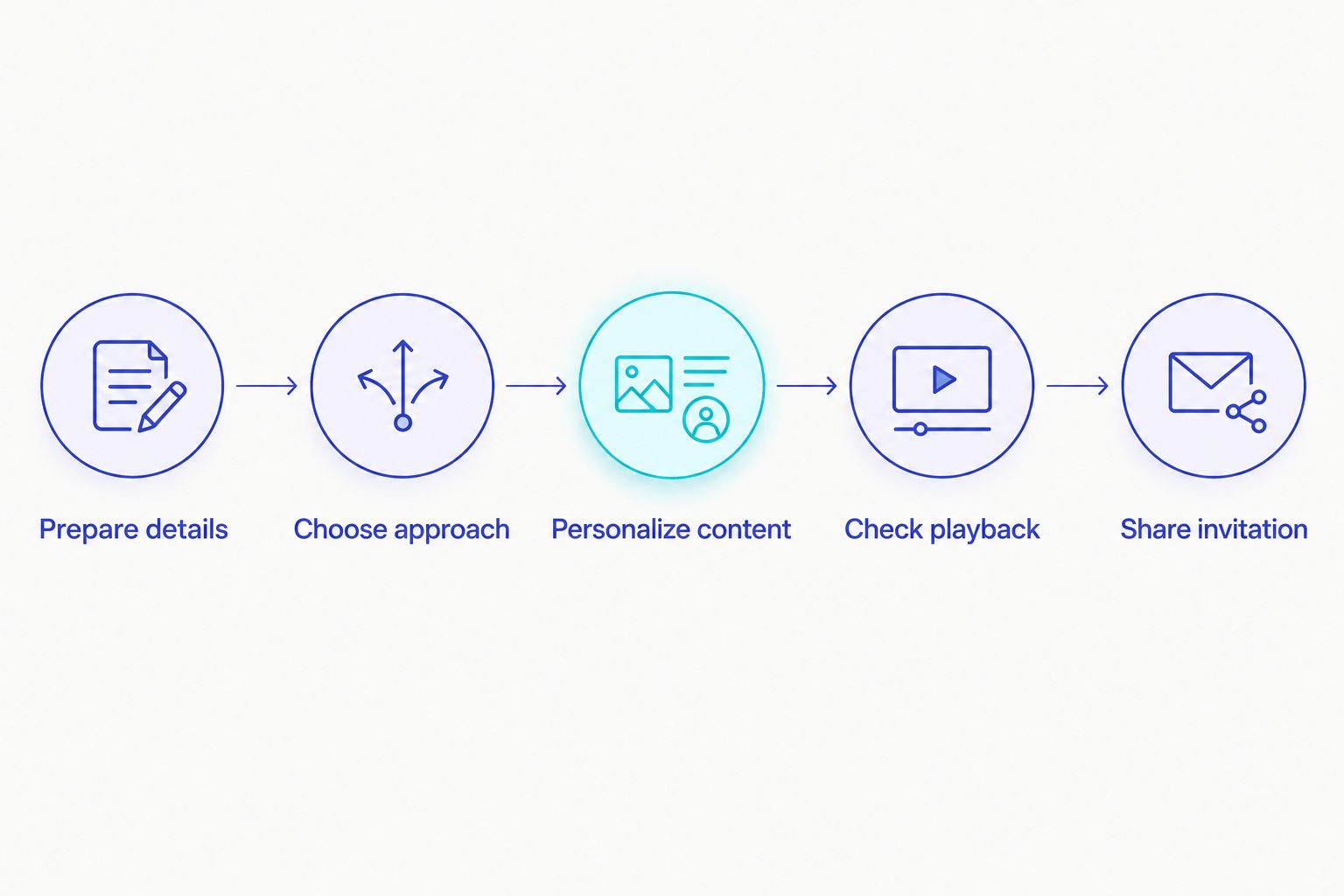
Use this sequence after choosing your tool. It keeps the creative decisions separate from the checks that prevent confusing invitations.
Prepare details
Write the final invitation wording before opening the editor. Include the birthday person's name, the occasion, date, start time and venue. Add RSVP instructions if guests need to respond.
For families travelling across cities or countries, write the location clearly. Avoid an abbreviated venue name that only nearby relatives recognize.
Choose approach
Pick a template, layout, photo sequence or footage-led edit. Choose the approach that matches the material you already have. Do not turn a simple invitation into an editing project unless that is what you want.
Personalize content
Add your wording and selected images or clips. Keep the main message visible. If you include a greeting or a playful opening, make sure guests still reach the practical details without confusion.
Check playback
Watch the complete invitation on 1 phone from beginning to end. Read the text at normal playback speed rather than pausing every screen. Ask another family member to check the names and event details.
Share invitation
Send 1 test message before sending the invitation to your guest list. Check the received version, not just the editor view. Make sure the video opens and that the essential information remains readable.
How these recommendations are organized
The recommendations match each tool's established purpose to a different invitation task: template customization, layout design, photo-led composition or footage editing. The criteria are editing effort, message readability, personal touches and final-file checks.
This is a use-case guide, not a timed test or a feature-by-feature scorecard. For your 2026 invitation, check the current editing and export options in the tool you choose. A suitable workflow matters more than an impressive feature you will not use.
Which birthday invitation video maker should you choose?
Selfanimate is the choice for families who want to customize animated invitation templates without editing skills. Start there if your main goal is to add your details to an occasion-specific video.
Choose Canva instead when you want to arrange the design yourself. Choose Adobe Express when personal photographs lead the story. Choose CapCut when the invitation depends on trimming and combining recorded clips.
For an undecided reader, the simplest decision is this: use a template when you want to personalize an invitation; use a design tool when you want to compose one; use a video editor when you want to edit footage.
Start with an invitation template
Browse animated invitation options and choose a starting point for your birthday video.
FAQ
What's the best birthday invitation video maker for beginners?
Selfanimate fits beginners who want to customize animated invitation templates without editing skills. Canva is an alternative when you prefer to arrange the layout yourself.
Is Canva better than a dedicated birthday invitation maker?
Canva is a better fit when custom layout control is your priority. A dedicated invitation maker fits a different task: personalizing an occasion-specific template rather than composing the whole design.
Which tool should I use for a birthday invitation with photos?
Adobe Express suits photo-led birthday invitations, while Canva suits invitations where photo placement and layout are the main design tasks. Choose based on whether you want to build a visual sequence or arrange a composition.
Can I make a birthday invitation from existing video clips?
Yes, a video editor such as CapCut lets you trim and arrange existing clips. Add clear event details so the finished video works as an invitation, not just a montage.
Can I include an Indian language in my birthday invitation?
Check your chosen tool and template with the exact regional-language text before finishing. Review the characters, line breaks and readability in the exported video as well as the editor.
What details should a birthday invitation video include?
Include the birthday person's name, the occasion, date, start time and venue. Add RSVP instructions when guests need to respond, and make the location clear for relatives travelling from elsewhere.
What should I check before sharing a birthday invitation in 2026?
Check spelling, event details, text readability and audio in the finished video. Send a test message and review the received file before sharing it with your guest list.
One last thing
Make 2 checks before sharing: watch once for the overall invitation, then watch again only for the event details. The second pass catches the information you can overlook while enjoying the animation.
Also put the date, time and venue in the message that accompanies your 2026 invitation. Guests can then find the essentials without replaying the video. Keep that text consistent with the finished invitation.